Accessing the Connectivity Notification Screen
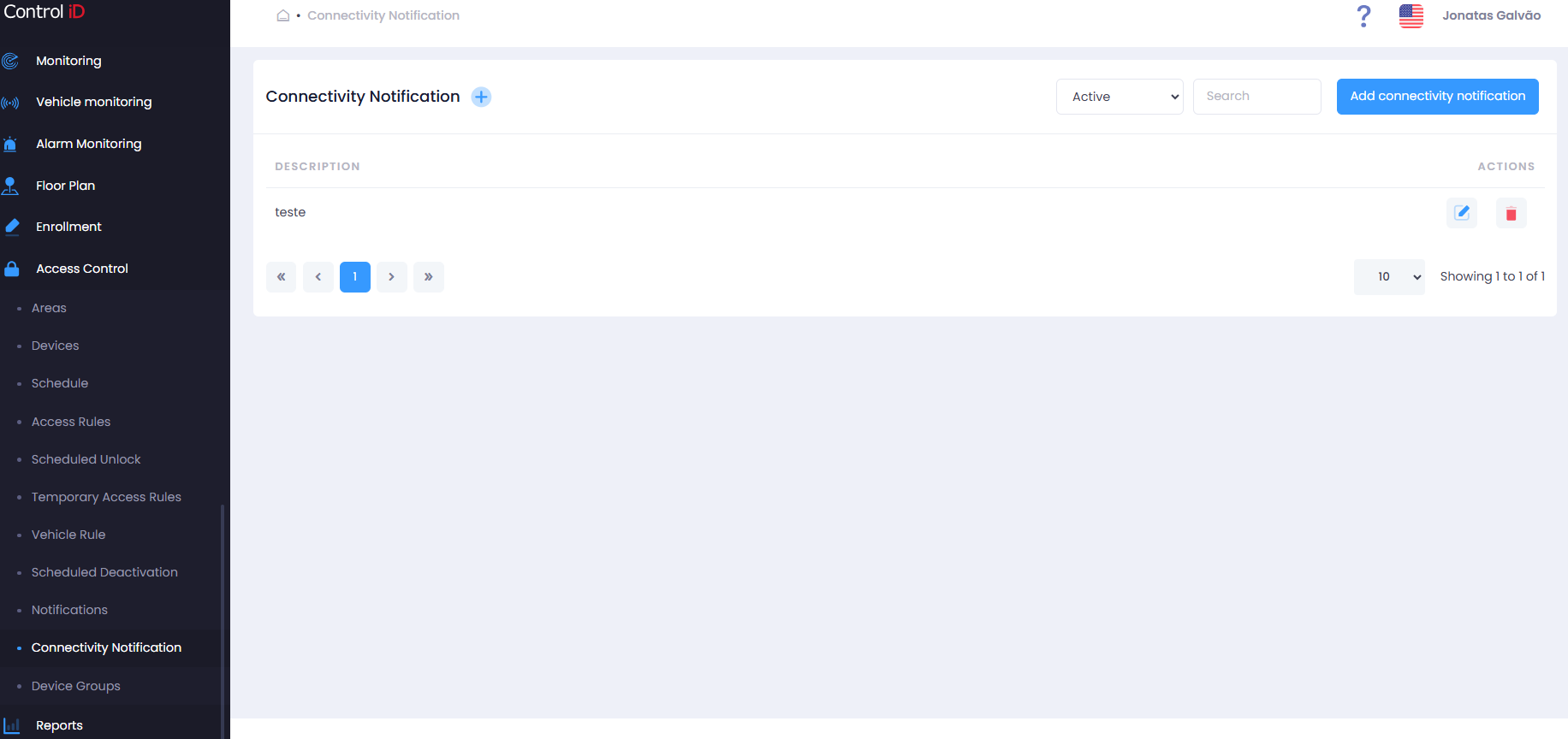
To configure automatic alerts when devices go offline, navigate via the side menu: Access > Connectivity Notification.
Overview
Connectivity Notification allows you to configure automatic email alerts when a device (turnstile, controller, reader, etc.) loses communication with the system for longer than the configured time. Optionally, a reconnection email can also be sent when the device resumes communication.
Filtering Connectivity Notifications
Use the status filter at the top of the screen:
- All: Shows all notifications (active and inactive).
- Active: Lists only active notifications.
- Inactive: Shows only deactivated notifications.
Use the Search field to locate a notification by description.
Search and Display
The table displays:
- Description: Connectivity notification name.
- Actions: Options to edit, deactivate/activate, and delete.
Adding a Connectivity Notification
To create a new notification, click Add connectivity notification in the screen header.
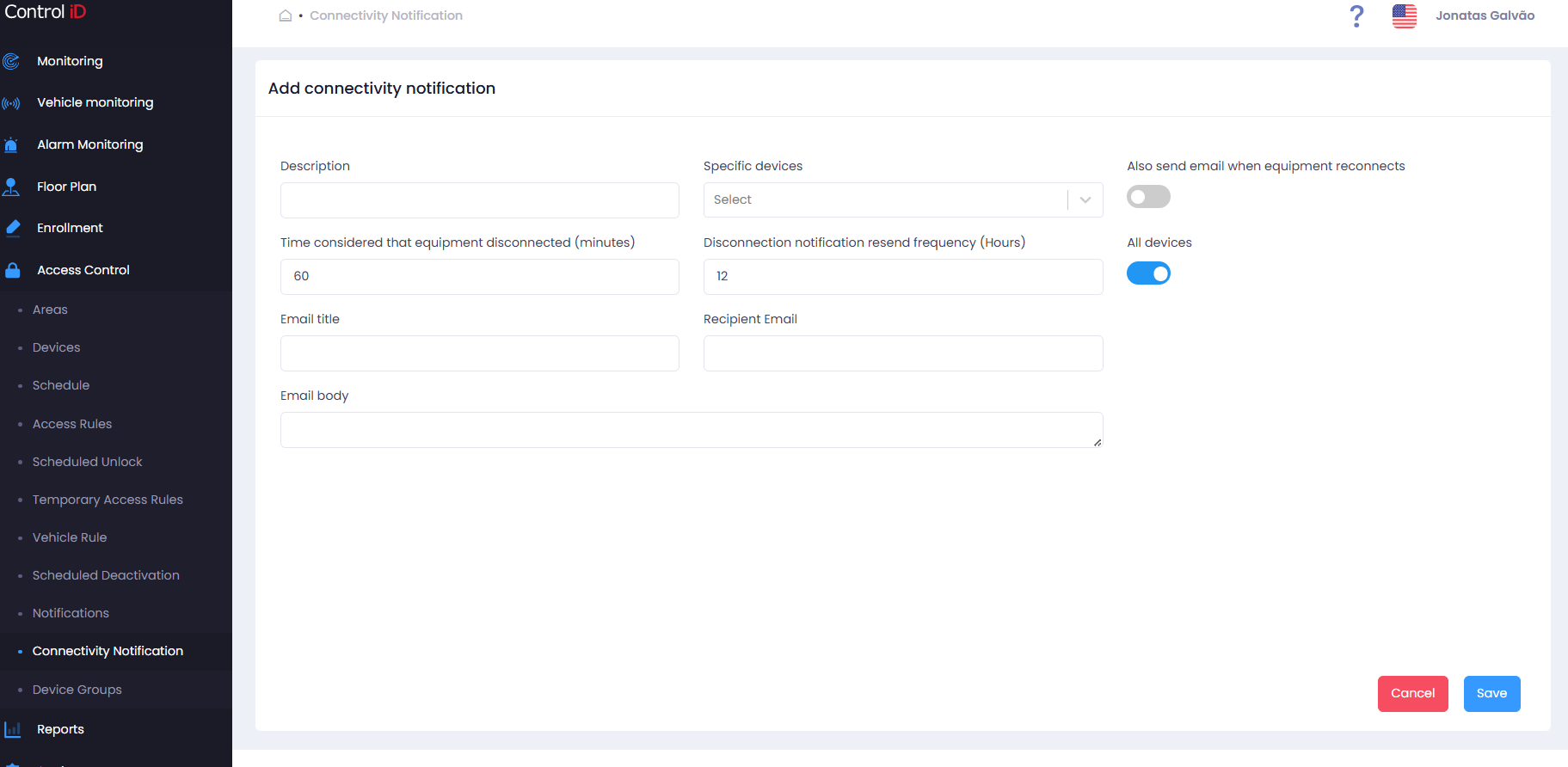
Fill in the form fields:
- Description: Name to identify this notification (required).
- Devices:
- All devices: The notification monitors all registered devices.
- Specific devices: Manually select the devices to monitor.
- Time considered that equipment disconnected (minutes): Absence time (in minutes) that characterizes a disconnection. Default: 60 minutes.
- Disconnection notification resend frequency (hours): Resend interval while the device remains offline. Default: 12 hours.
- Recipient Email: Email address for sending the alert (required).
- Email Title: Alert email subject (required).
- Email Body: Alert email text (required).
- Also send email when equipment reconnects: Enable to also receive a notification when the device resumes communication. Disabled by default.
Click Save to confirm the registration.
Editing a Connectivity Notification
To edit an existing notification, click the edit icon (pencil) on the corresponding row. After making changes, click Save.
Removing a Connectivity Notification
- Click the delete icon (trash) to deactivate the notification. A confirmation dialog will be displayed.
- To reactivate, click the reactivation icon.
Note: Deactivating a Connectivity Notification will stop alerts from being sent even if monitored devices go offline.