Accessing the Access Reports Screen
To view access event reports, navigate via the side menu: Reports > Access.
Overview
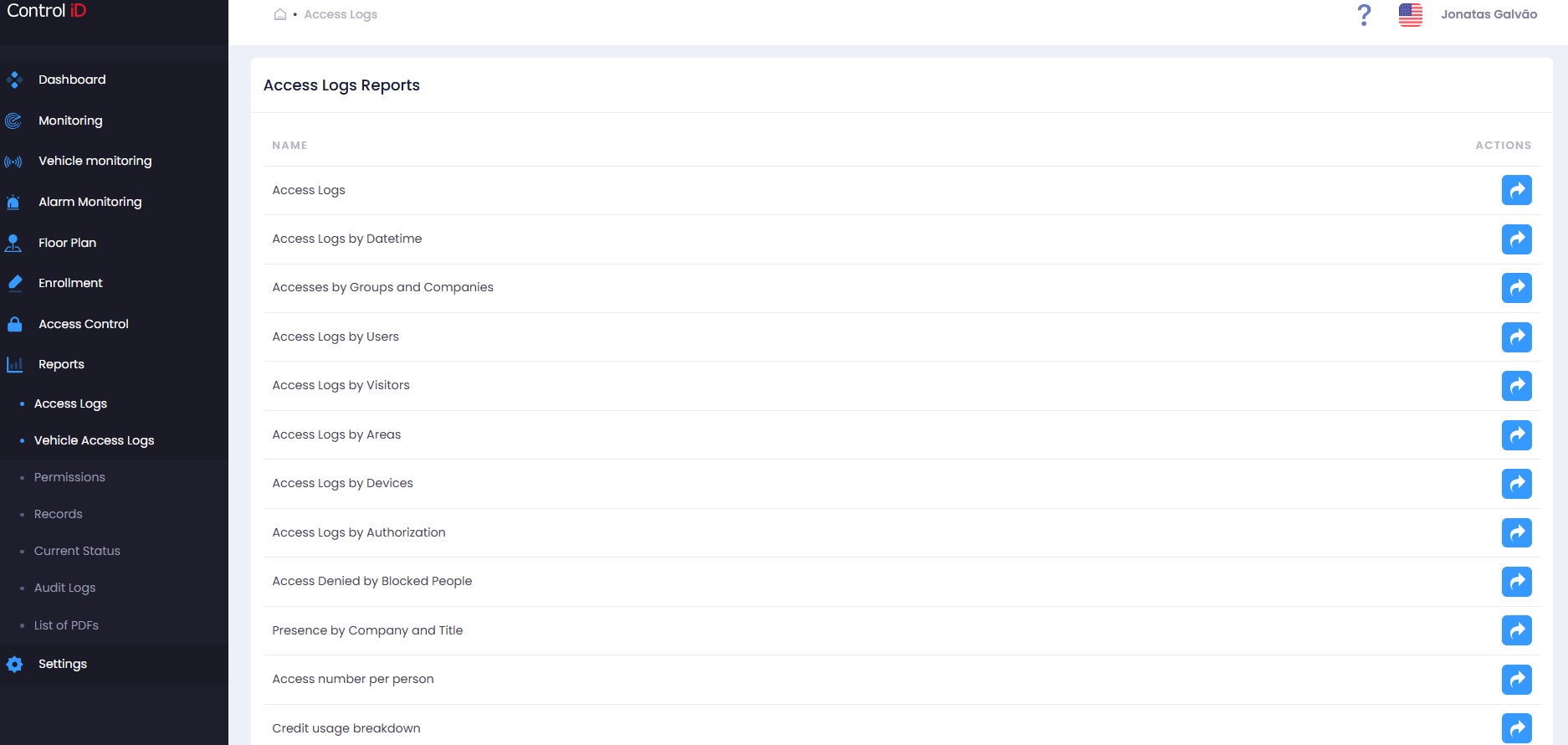
The Access Reports Center displays cards for each available query type. Click the desired card to open the corresponding sub-report. The available sub-reports are:
- Access Logs — People: Lists all access events, with filters by person, area, device, authorization type, and date range.
- Access Logs — Date and Time: View accesses grouped by time period.
- Access Logs — Group and Company: Filter events by people groups or linked companies.
- Access Logs — Visitors: Access events of registered visitors.
- Access Logs — Area: View entry and exit records by physical area.
- Access Logs — Device: View events generated by each device.
- Access Logs — Authorization: Group events by system response type (granted, denied, etc.).
- Denied Access — Blacklist: Shows only access events from people on the block list.
- Presence by Company and Position: Count of present people grouped by company and position.
- Number of Accesses per Person: Total event count per person in a period.
- Access with Credit Usage Details: Shows credit (quota) consumption at each access event.
- People Without Access by Period: Lists people who have not performed any access within the queried period.
Filtering Access Logs
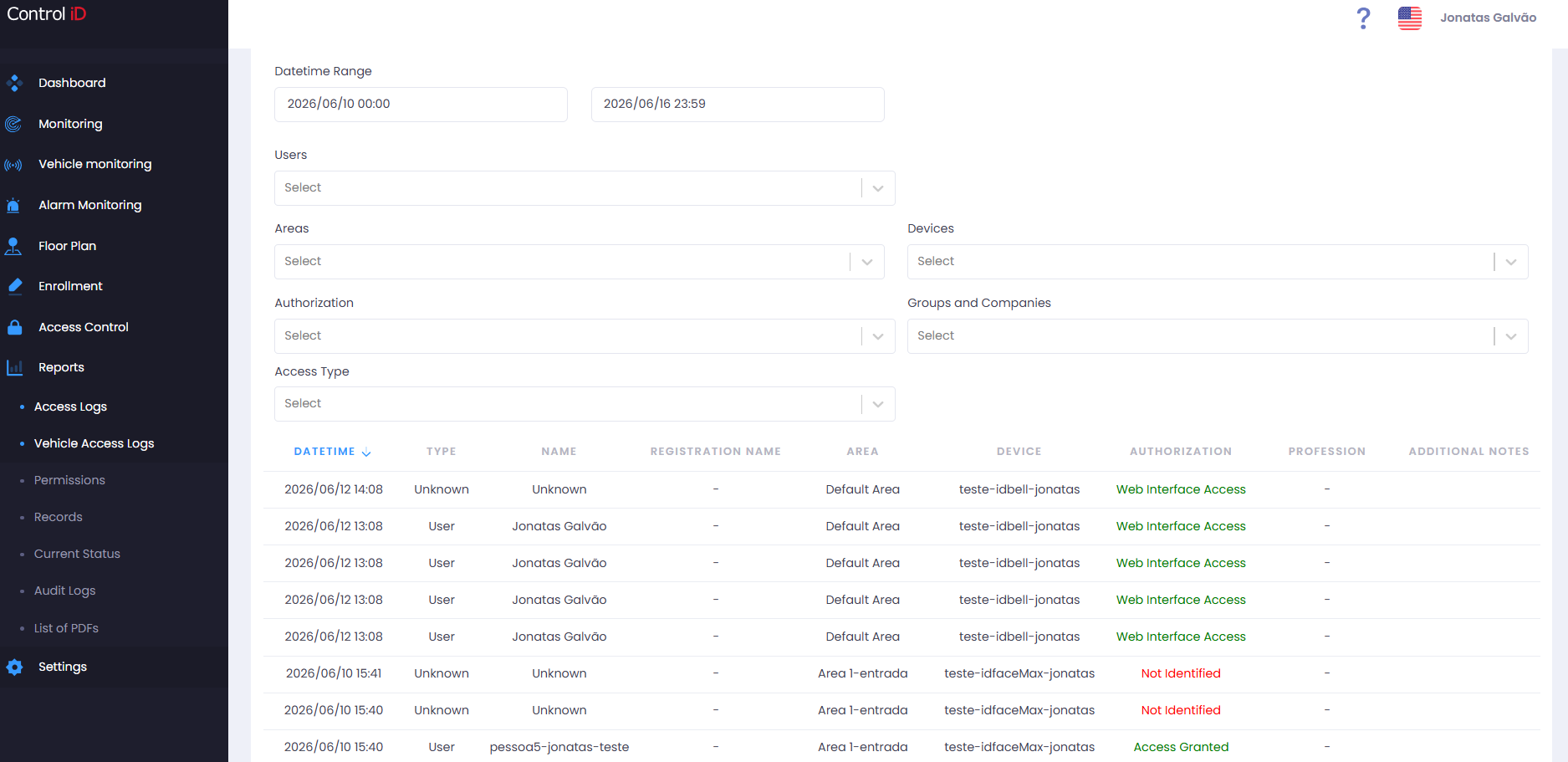
When opening any sub-report, a filter panel is available at the top of the screen. The filters common to most reports are:
- Time Range: Select start and end date/time to delimit the queried period.
- People: Search and select one or more people by name.
- Areas: Select one or more physical areas.
- Devices: Select one or more devices.
- Authorization: Filter by event type (Granted, Denied by Schedule, etc.).
- Document Type / Document Number: Available in reports that allow searching by identification document.
After configuring the filters, results update automatically in the table below.
Search and Display
The results table displays the following default columns:
- Date/Time: Exact moment of the event.
- Name: Person or visitor who performed the access.
- Type: Indicates whether it is a Person or Visitor.
- Authorization: Event type (e.g., Access Granted, Access Denied).
- Area: Destination area of the access.
- Device: Device that recorded the event.
- Photo: Image captured at the time of access, when available.
- Access Type: Event registration status.
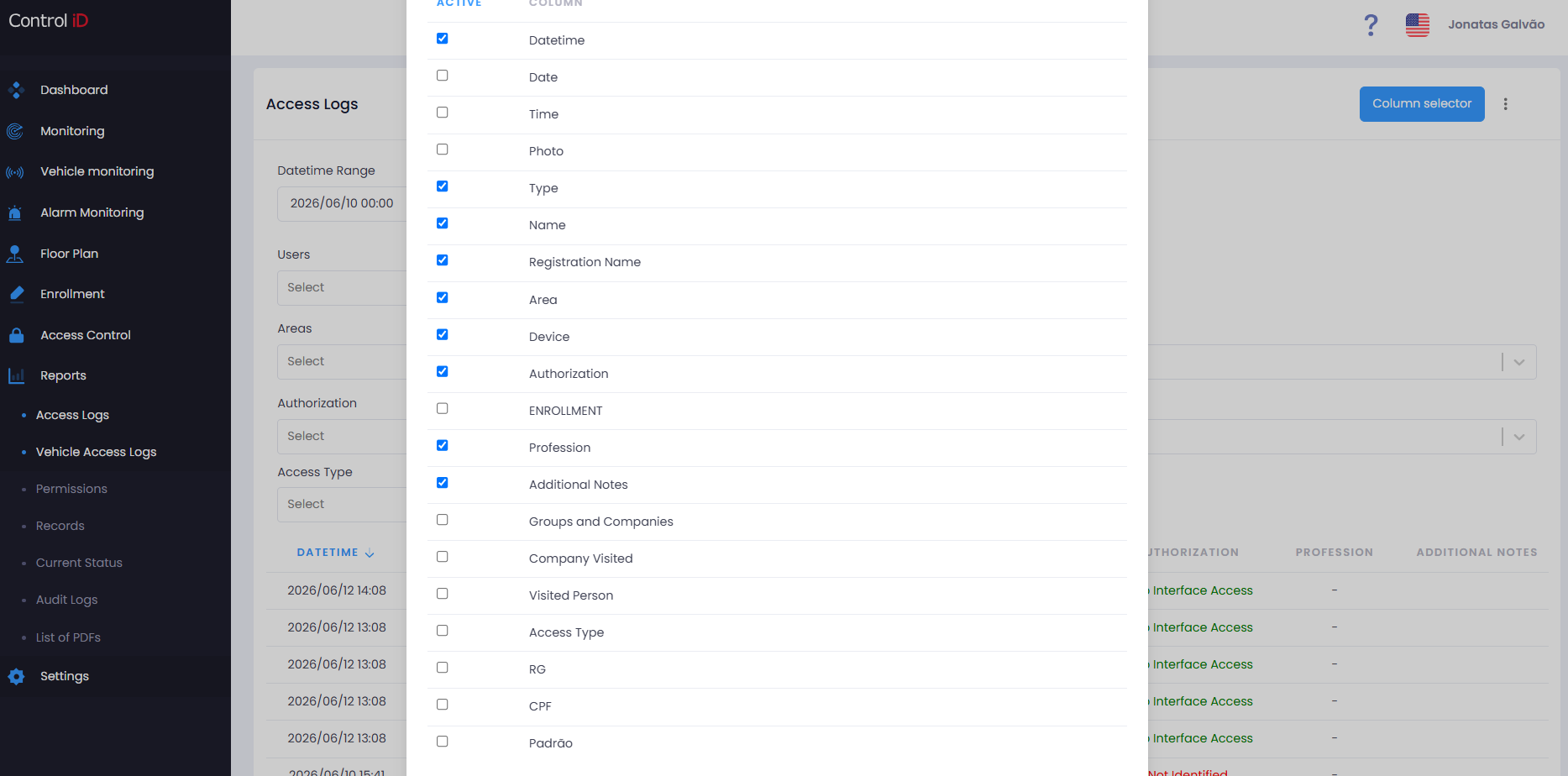
You can customize the displayed columns by clicking the column selector in the table toolbar. The default pagination shows 10 records per page and can be adjusted to 25, 50, or 100 records.
Exporting Data
All sub-reports allow exporting filtered data. To export:
- Configure the desired filters.
- Click the
Export CSVbutton in the table toolbar. - The file will be generated and automatically downloaded by the browser.
Some reports also offer asynchronous PDF export. In this case, the file will be available under Reports > PDF List after generation is complete.
Note: The export includes only the records matching the current filters. Adjust the filters before exporting to ensure all desired data is included.
Sub-report: People Without Access by Period
This sub-report lists people who have not performed any access within the queried period, useful for identifying inactive users.
Available columns:
- Name: Person's name.
- Last Access: Date and time of the last recorded access. Displays
Never accessedif no history exists. - Days Without Access: Number of days since the last access.
- Last Area: Last area in which the person was recorded.
- Last Device: Last device used.
Sub-report: Presence by Company and Position
Displays the count of present people grouped by company and position. Columns include:
- Company / Position
- Total Present: Number of people currently inside an area.
- Total Registered: Total number of people registered for that company/position combination.
Sub-report: Access with Credit Usage Details
For systems using the Credits module, this report shows credit consumption at each access event. Columns include the standard access information plus the credits used and the applied credit type.