Accessing the Vehicle Access Rules Screen
To configure vehicle access permissions to parking lots and areas, navigate via the side menu: Access > Vehicle Rules.
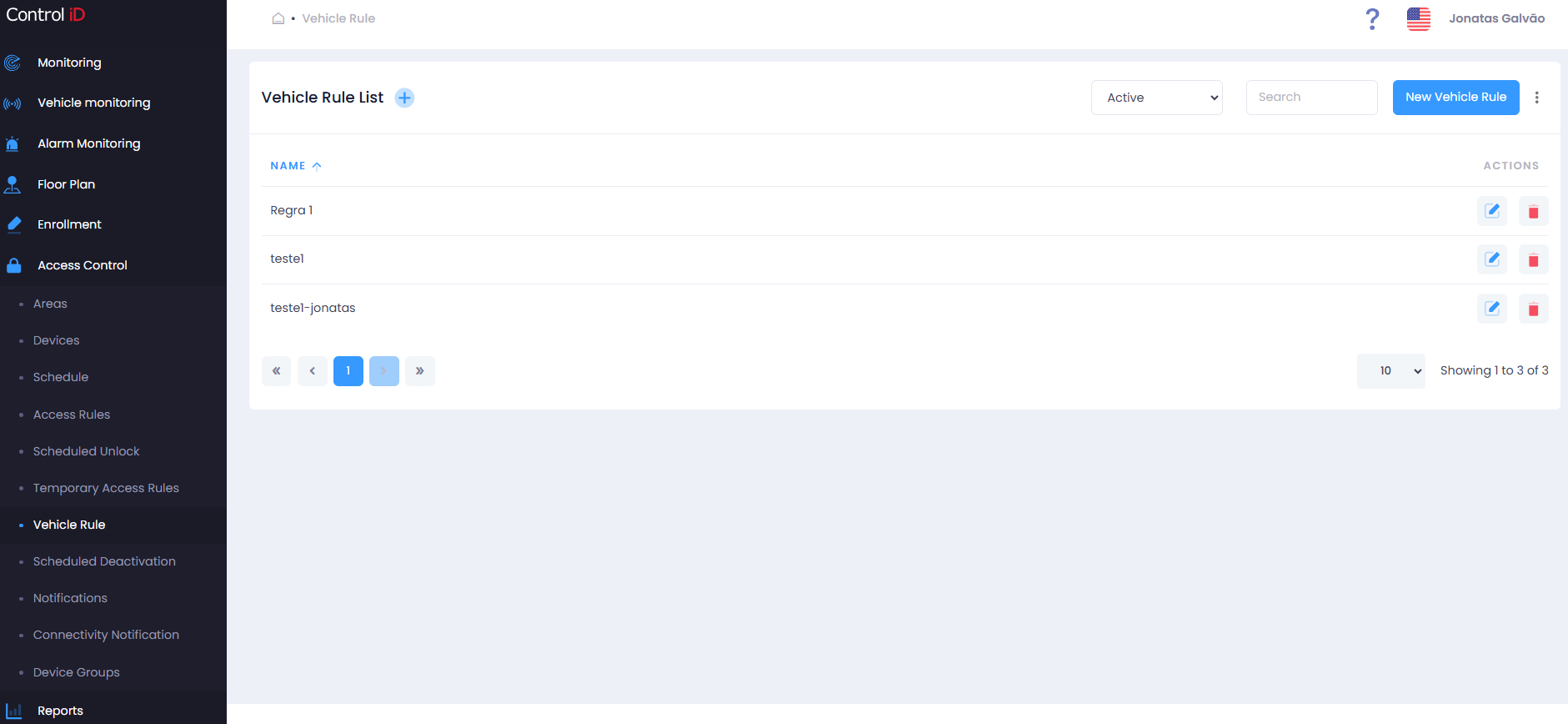
Overview
Vehicle Access Rules define which vehicles (or drivers) are permitted to access which parking lots and areas, at which times. They work similarly to conventional Access Rules but are focused on vehicle access control, integrated with UHF readers and other vehicle control devices.
Filtering Vehicle Access Rules
Use the status filter at the top of the screen:
- All: Shows all rules (active and inactive).
- Active: Lists only active rules.
- Inactive: Shows only deactivated rules.
Use the Search field to locate a rule by name.
Search and Display
The table displays:
- Name: Vehicle access rule identifier.
- Status: Active or Inactive.
- Actions: Options to edit, deactivate/activate, and delete.
Adding a Vehicle Access Rule
To create a new rule, click New Vehicle Access Rule in the screen header. Registration is performed through a wizard with 5 steps:
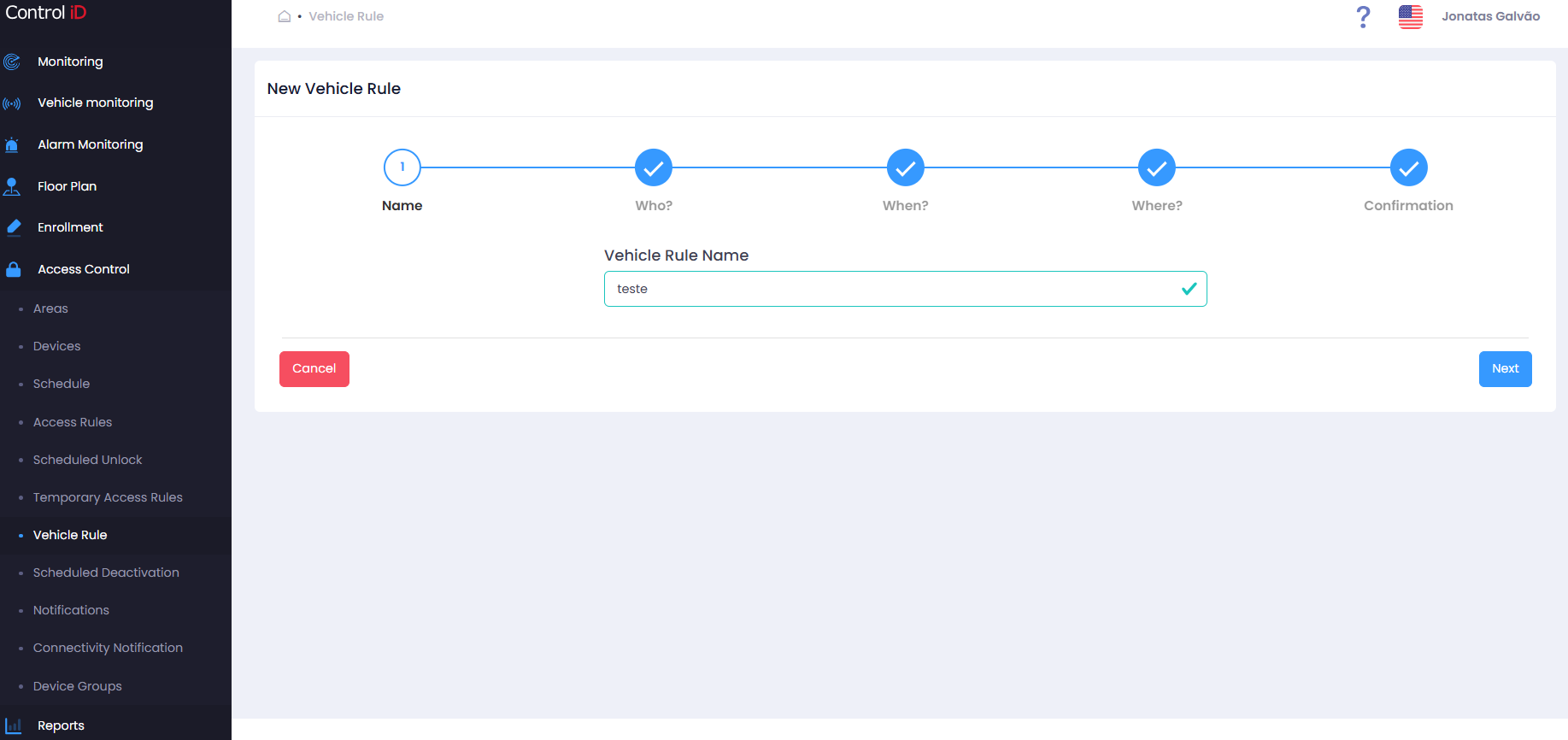
Step 1 — Vehicle Rule Description
- Rule Name: Enter a descriptive name for the rule (required).
- Description: Additional information about the rule's purpose.
Click Next to continue.
Step 2 — Who (Drivers)
Define who can use this rule and which vehicle groups are included:
- People: Select authorized drivers (registered people).
- Visitors: Include visitors with registered vehicles.
- Groups: Select authorized people groups.
- Vehicle Groups: Select the vehicle groups authorized by this rule.
Click Next to continue.
Step 3 — When
Define the vehicle rule schedule:
- Schedules: Select schedules pre-registered under Access > Schedules.
Click Next to continue.
Step 4 — Where (Parking Lots)
Select the parking lots where the rule will apply:
- Parking Lots: Select one or more parking lots.
Click Next to continue.
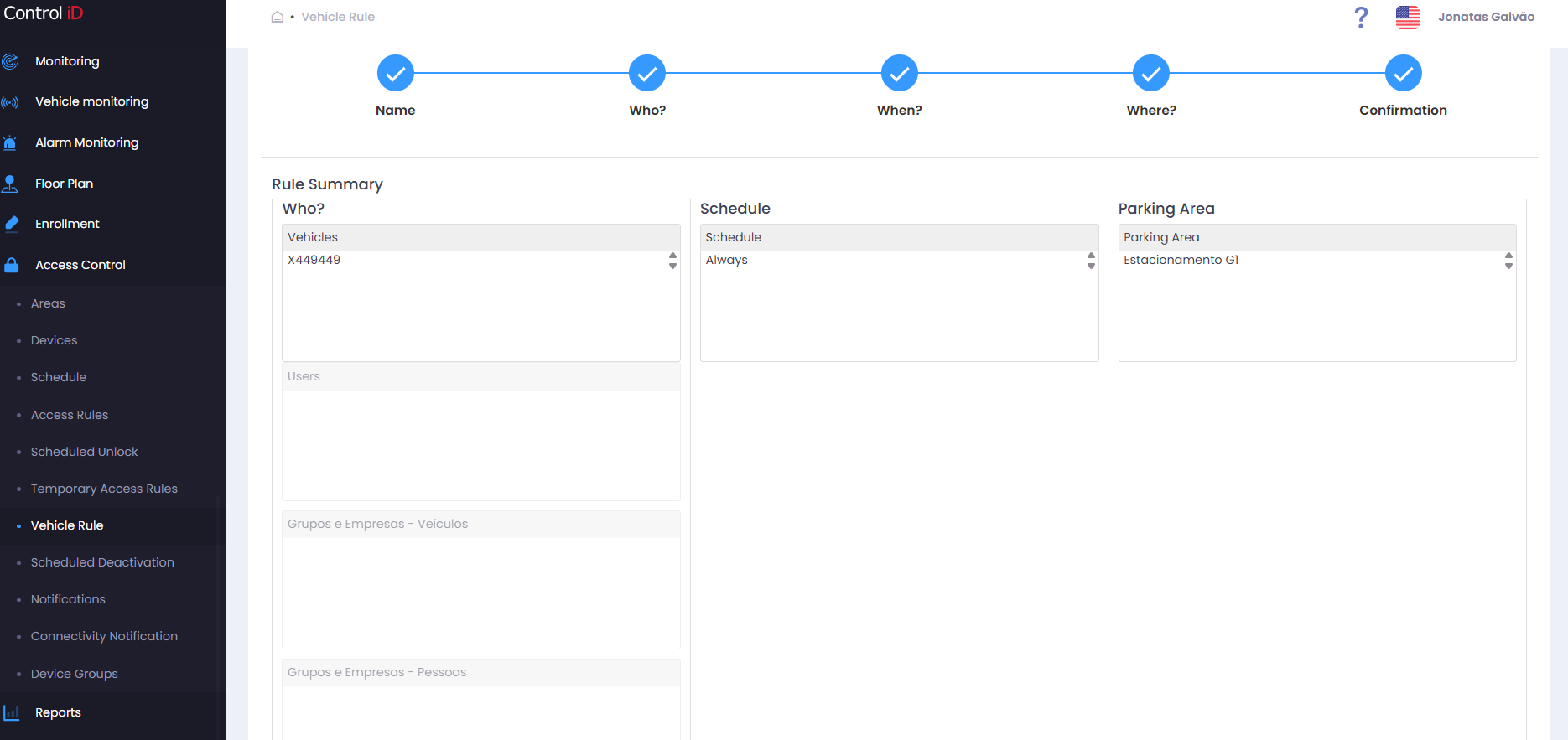
Step 5 — Confirmation
Review the settings summary. Click Save to confirm.
Editing a Vehicle Access Rule
To edit an existing rule, click the edit icon (pencil). The wizard will open with the current settings. After making changes, click Save.
Removing a Vehicle Access Rule
- Click the delete icon (trash) to deactivate the rule.
- To reactivate, click the reactivation icon.
Note: Deactivating a Vehicle Access Rule will block the associated vehicle accesses on synchronized devices.