Accessing the User Profile Screen
To view and edit your operator profile settings, access the user menu in the top-right corner of the screen and click My Profile.
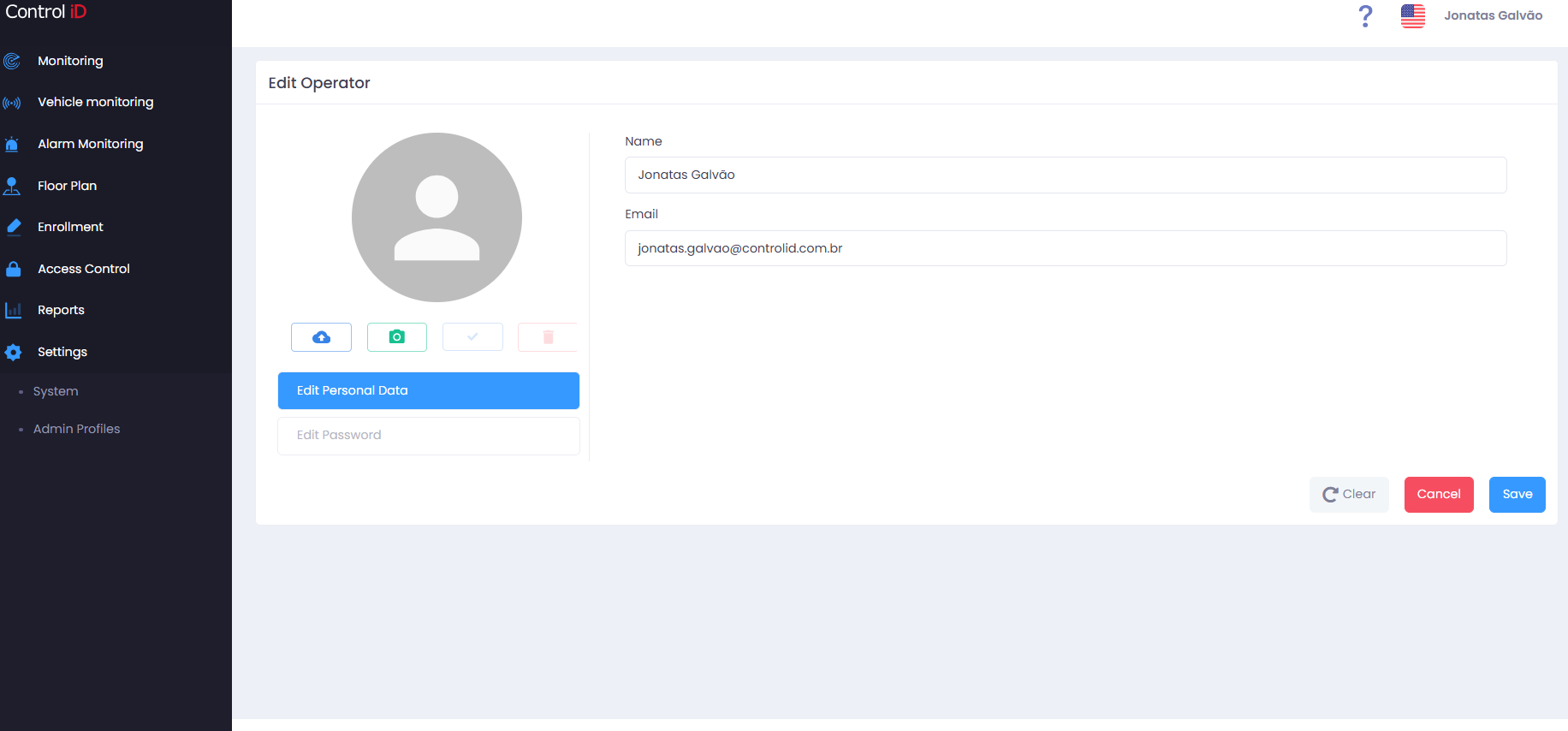
Overview
The User Profile screen allows the logged-in operator to view and update their personal information and change their access password. The interface language can be changed using the language selector available in the top-right corner of the main screen.
Editing Personal Data
To edit your personal data, click Edit Personal Data on the profile screen.
The fields available for editing are:
- Full Name: Your display name in the system (required).
- Email: Login and notification email address (required).
- Photo / Avatar: Click the current photo to upload a new profile image.
After making changes, click Save to confirm.
Changing the Password
To change your access password, click Edit Password on the profile screen.
Fill in the fields:
- Current Password: Enter your current password for validation.
- New Password: Enter the desired new password.
- Confirm New Password: Repeat the new password for confirmation.
Click Save to confirm the change.
Note: After changing the password, use the new password at your next login. The previous password will be invalidated immediately.