Accessing the Block List Screen
To manage people who should have their access blocked in the system, navigate via the side menu: Records > Block List.
Note: This feature is only available when the Advanced Block List Management option is enabled in the system settings. If you do not see this option in the menu, contact your administrator.
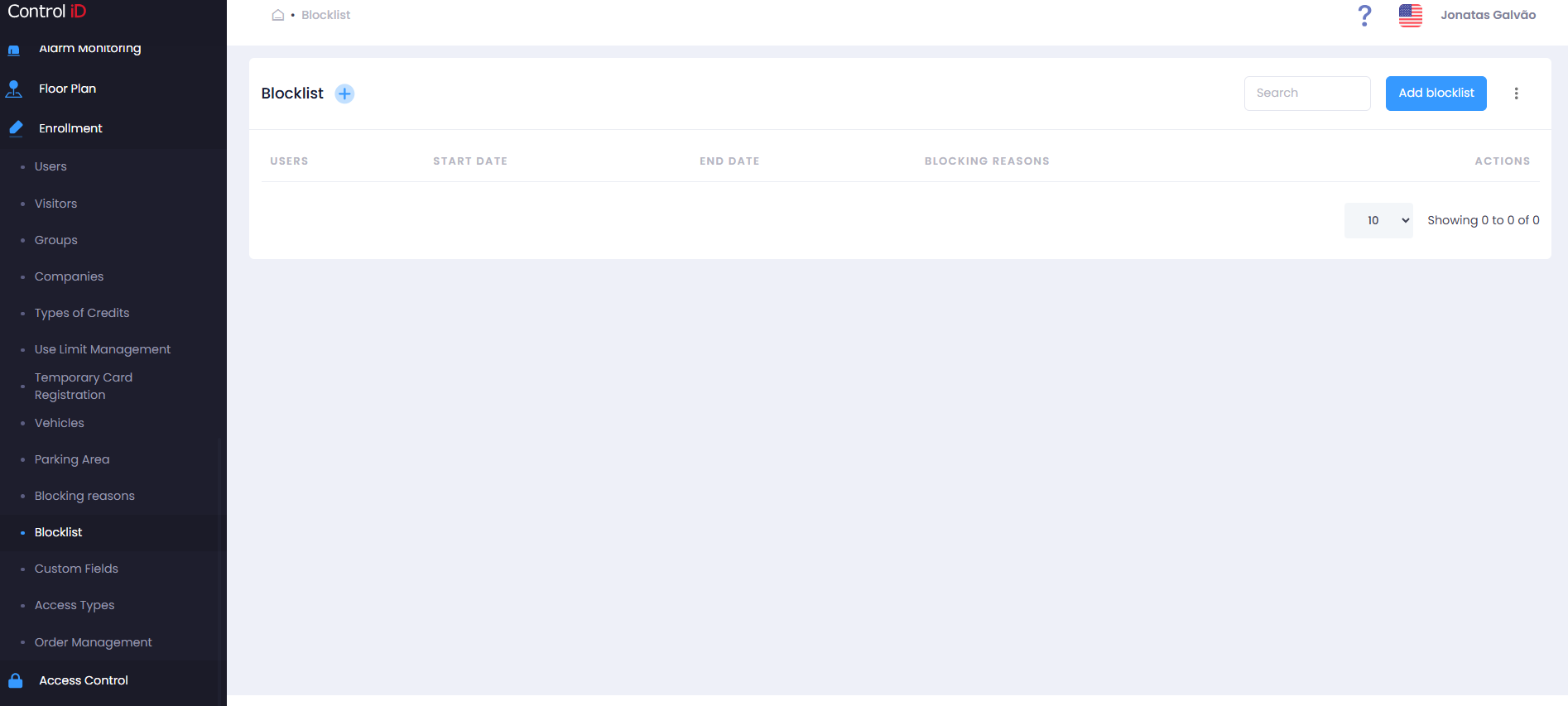
Filtering the Block List
Use the Search field to locate a blocked person by name. Results update automatically.
Search and Display
The table displays the following data for each block record:
- Person Name: Blocked person.
- Blocking Reason: Registered reason for the block.
- Start Date: Date the block took effect.
- End Date: Date the block expires (when defined). Blocks without an end date are permanent until manually removed.
- Actions: Options to edit and delete the record.
Adding a Person to the Block List
To block a person, click Add blocked people in the screen header.
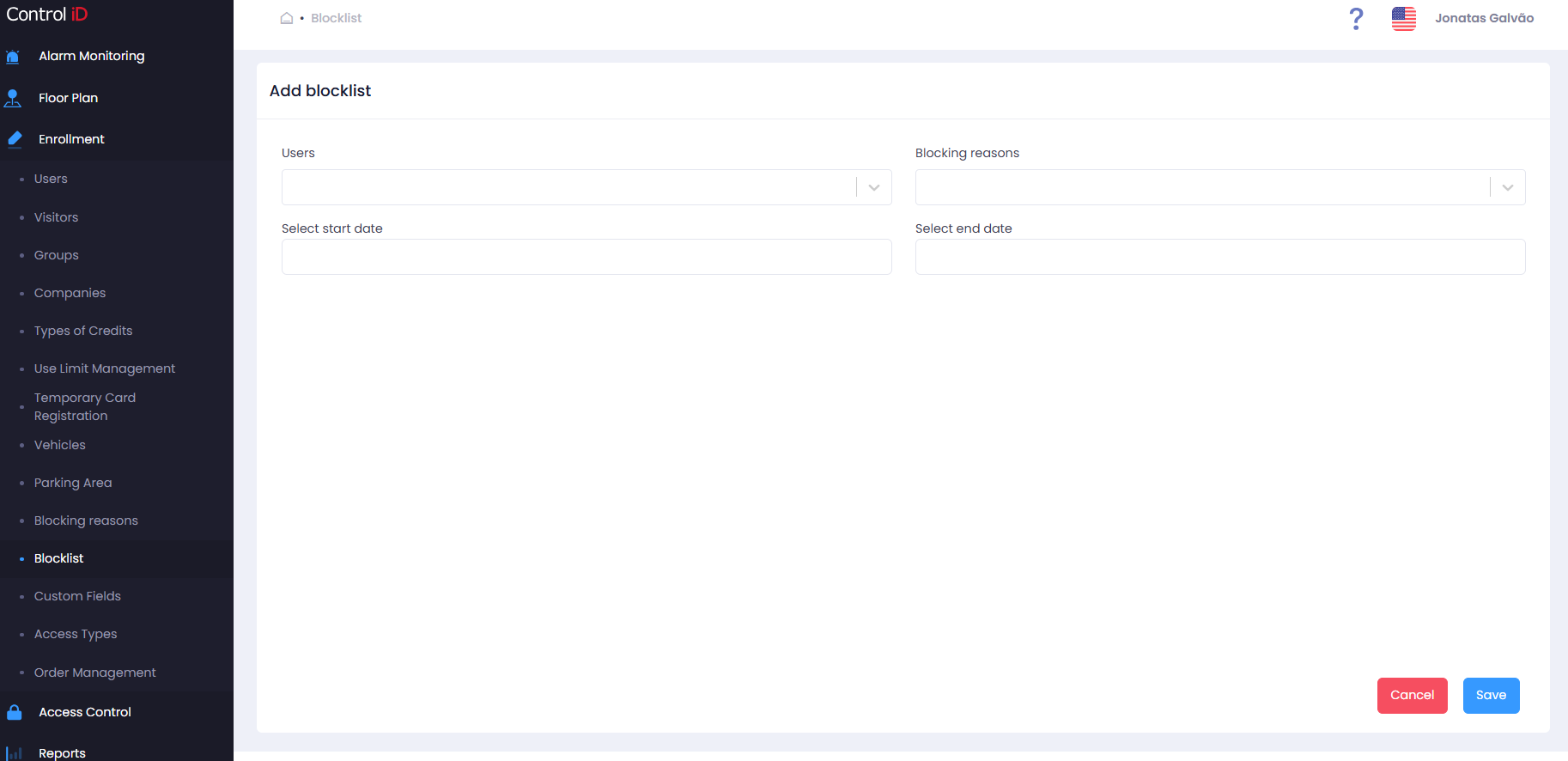
Fill in the fields:
- Person: Select the person to be blocked. Search is done by name.
- Blocking Reason: Select the reason from those registered under Records > Blocking Reasons.
- Start Date: Date on which the block should take effect.
- End Date: Block expiration date (optional). If not provided, the block is permanent until manually removed.
Click Save to confirm. The person will be immediately prevented from accessing devices that have been synchronized.
Editing a Block Record
To edit an existing record, click the edit icon (pencil) on the corresponding row. You can change the reason and dates. Click Save after making changes.
Removing from the Block List
To remove a person from the block list, click the delete icon (trash) on the corresponding row and confirm the action.
Note: Removing a person from the block list restores their access according to the current access rules. The action takes effect immediately on synchronized devices.
Importing the Block List
It is possible to import a block list in bulk from a file. Click Import block list and follow the import instructions, providing a CSV file with the data of the people to be blocked.