Accessing the Order Management Screen
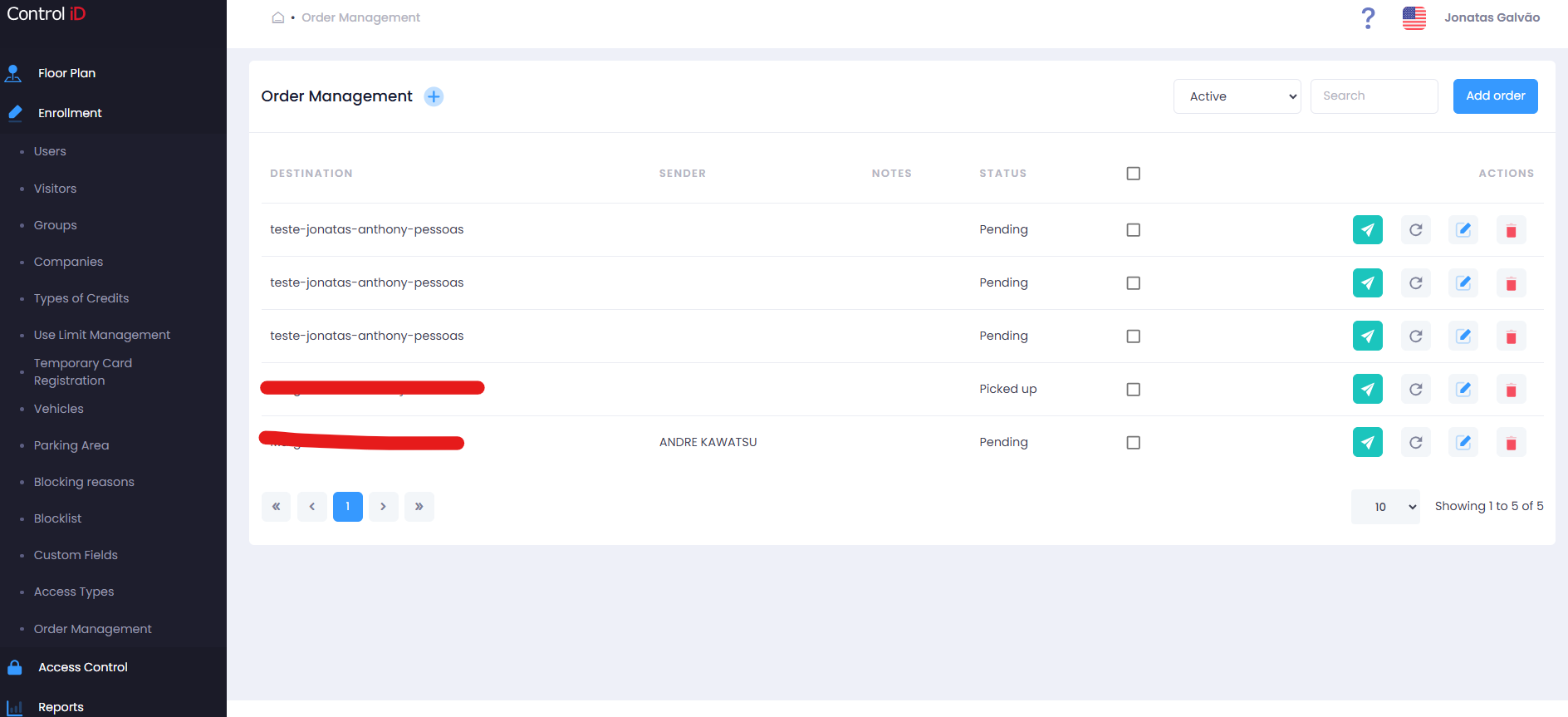
To manage packages and correspondence received at the front desk, navigate via the side menu: Records > Order Management.
Filtering Orders
Use the status filter at the top of the screen to filter orders by their current situation.
Search and Display
The table displays the following information:
- Recipient: Name of the person who should pick up the order.
- Type: Package type.
- Status: Current order status.
- Actions: Options to edit, update status, notify, and delete.
Adding an Order
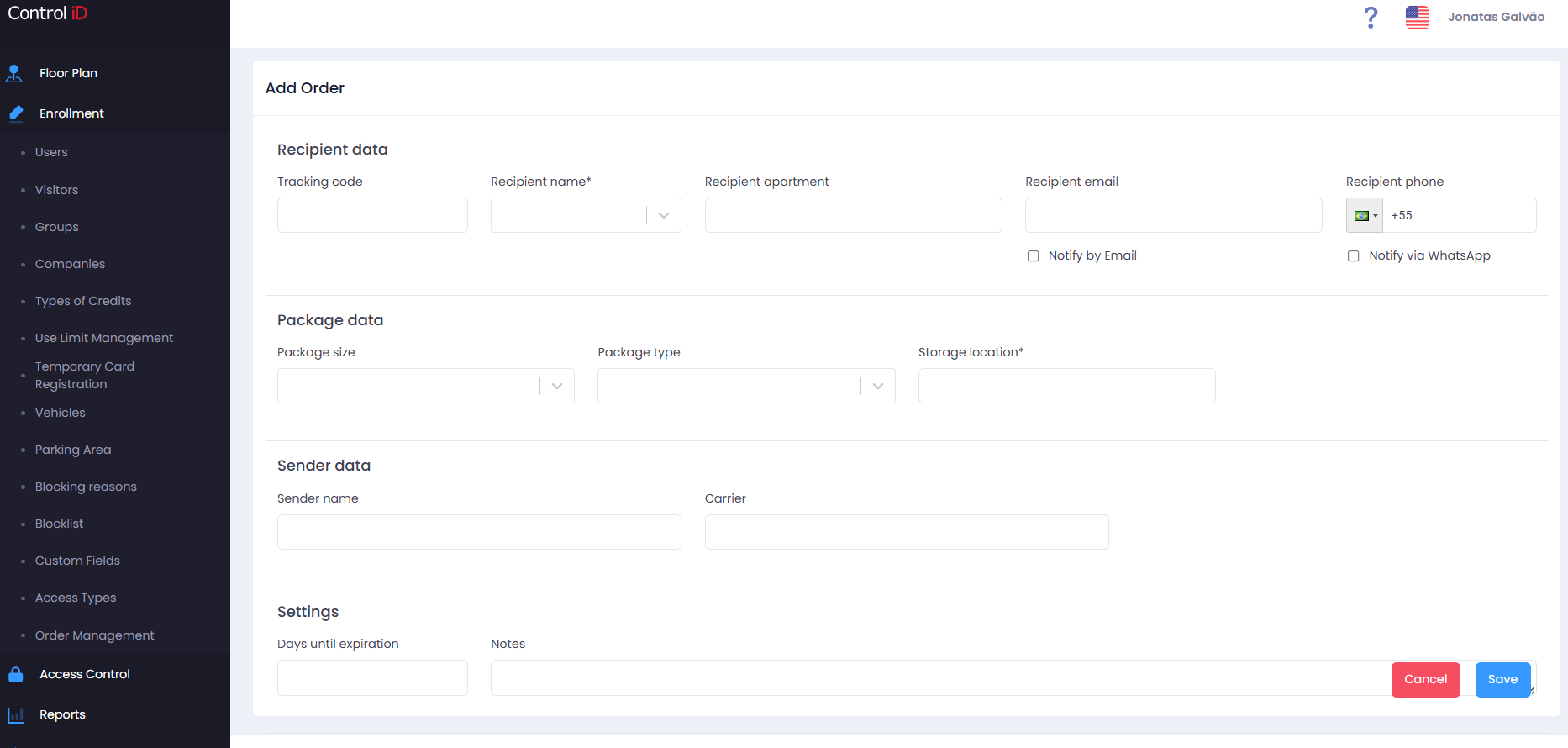
To register a new order, click Add Order in the screen header.
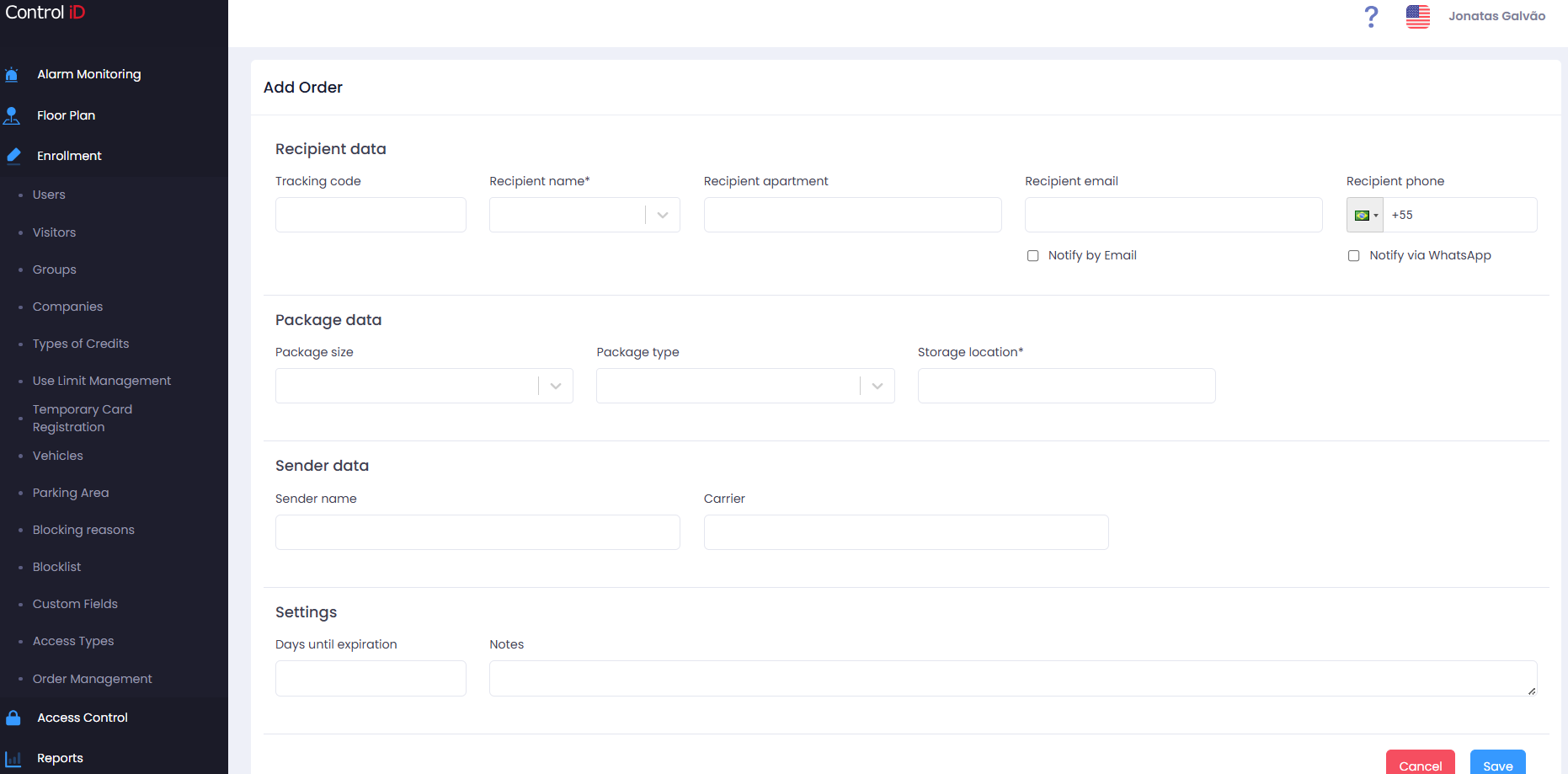
Fill in the form fields:
- Tracking Code: Order tracking code (when available).
- Recipient Person: Select the registered person in the system who should pick up the order.
- Recipient Name: Name for recipient identification (auto-filled when selecting the person).
- Recipient Email: Email address for arrival notification.
- Recipient Phone: Phone number with country code for SMS/WhatsApp notifications.
- Recipient Unit: Recipient's unit, room, or extension.
- Package Type: Select the type of order.
- Package Size: Select the volume size.
- Carrier: Enter the delivery carrier.
- Sender Name: Who sent the order.
- Storage Location: Where the order is stored (e.g., locker number).
- Notes: Additional information about the order.
Click Save to confirm the registration.
Editing an Order
To edit an existing order, click the edit icon (pencil) on the corresponding row. The edit form presents two tabs:
- History: Record of status changes and sent notifications.
- Status: Allows changing the order status directly.
Notifying the Recipient
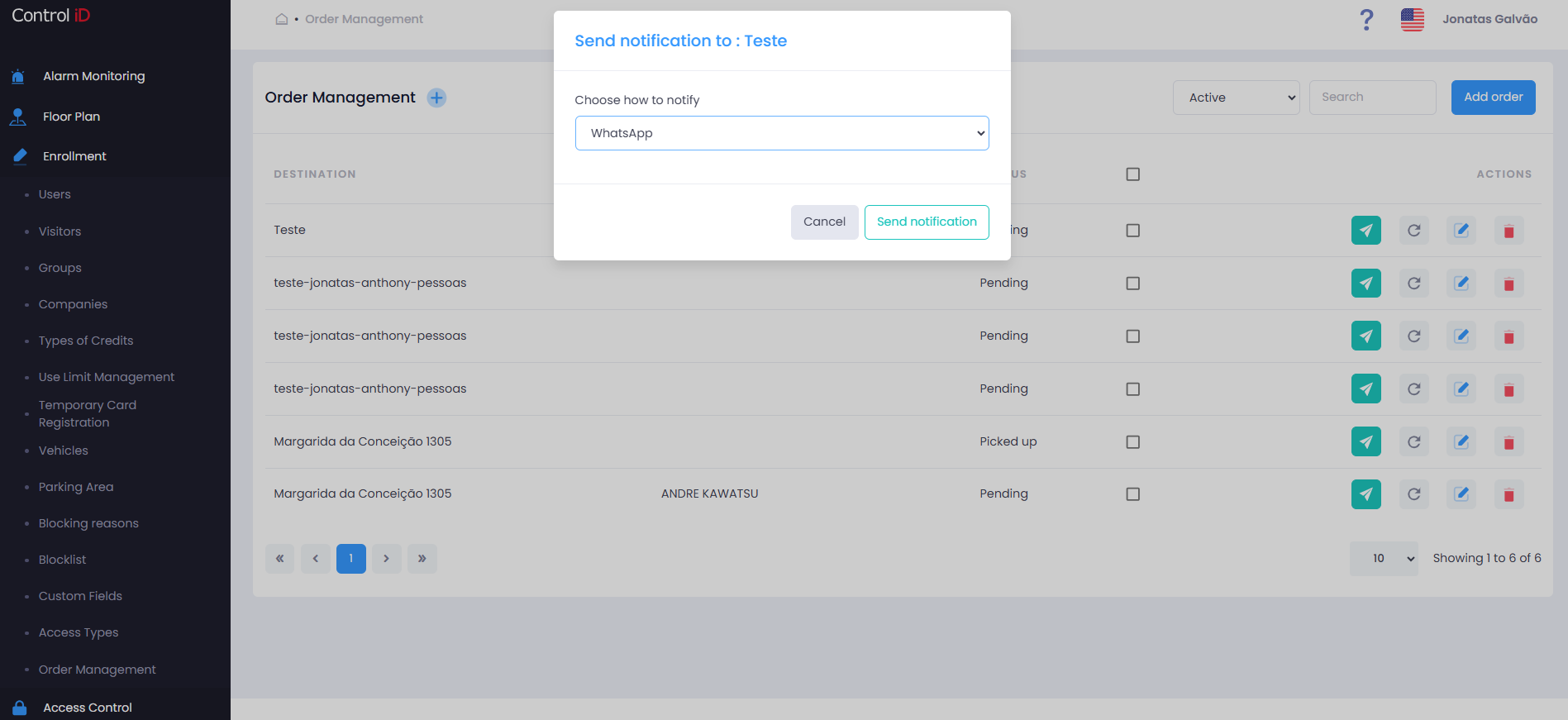
To send a notification to the recipient that their order has arrived:
- On the order row, click Send notification.
- Select the desired notification channel (e.g., Email).
- Confirm the sending.
To notify all recipients with pending orders at once, use the Notify in bulk option in the toolbar.
Updating Order Status
To record a pickup or update status:
- On the order row, click Update status or open the order for editing and go to the Status tab.
- Select the new status.
- Confirm the operation.
Removing an Order
To remove an order, click the delete icon (trash) on the corresponding row. A dialog will appear with two options:
- Deactivate: Disables the order without removing it from the database.
- Permanently delete: Performs a fake delete, marking the record as deleted without physically removing it.
Order Reports
To view statistics and reports on orders, access the reporting options available from the screen menu:
- Order Report: Detailed listing with filters by period and status.
- Pending Orders: Lists only orders awaiting pickup.