Accessing the Vehicle Monitoring Screen
To view vehicle access events in real time, navigate via the side menu: Vehicle Monitoring.
Overview
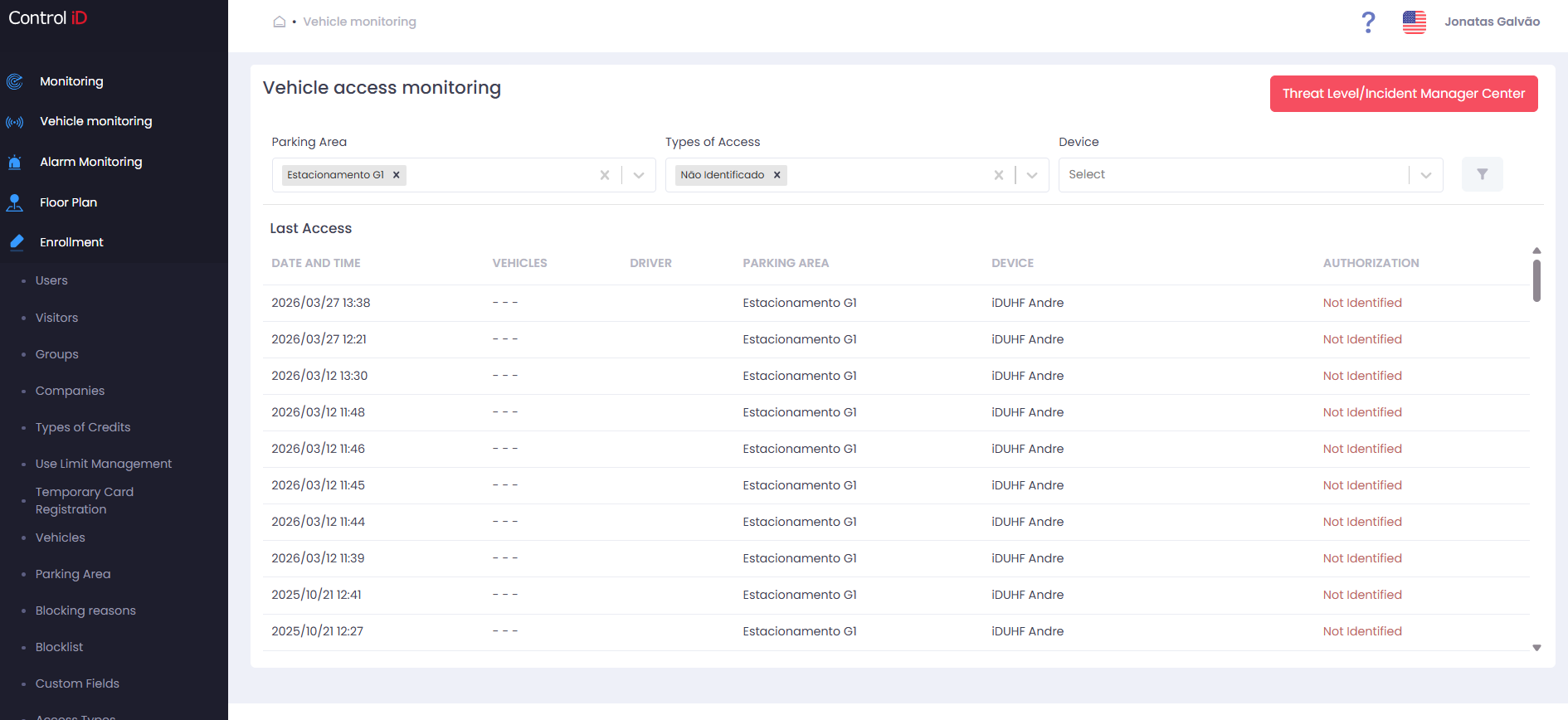
Vehicle Monitoring displays vehicle access events in real time, automatically updating the list as new events are recorded by devices. You can view the vehicle, driver, parking lot, and authorization for each event, and trigger gate/barrier opening directly from the screen.
Filtering Events
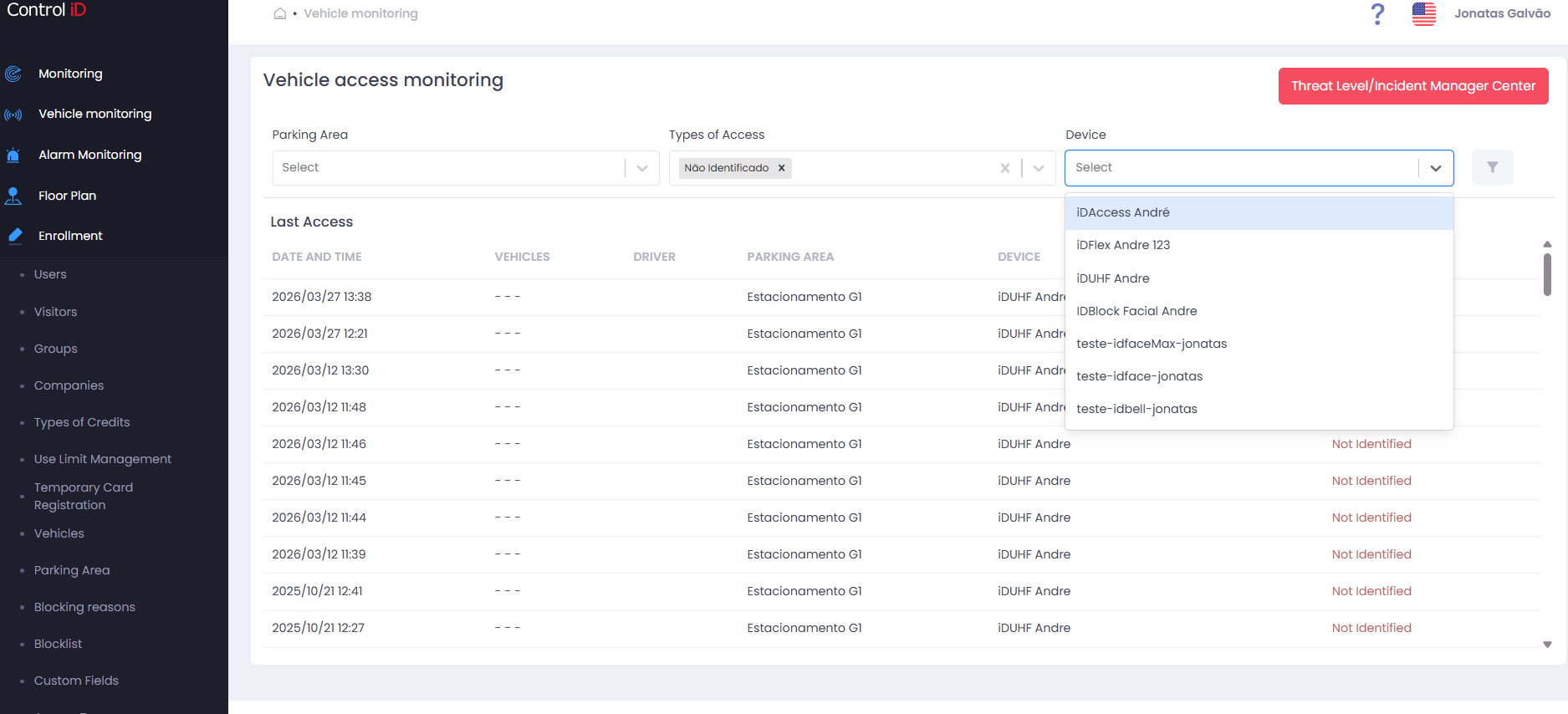
The filter panel can be shown or hidden by clicking the filter button in the toolbar. Available filters:
- Parking Lots: Select one or more parking lots to show only events from those locations.
- Access Types: Filter by event authorization types:
- Access Granted
- Access Denied
- Pending Identification
- Not Identified
- Identification Timeout
- Pending Access
- Access Without ID
- Button Access
- Web Interface Access
- Intercom Access
- Devices: Select one or more devices to show only events from those devices.
Selected filters are automatically saved for the next time you access the screen.
Search and Display
The events table displays for each record:
- Date/Time: When the event occurred.
- Vehicle: Make, model, license plate, and color of the identified vehicle.
- Driver: Name and photo of the person associated with the vehicle.
- Parking Lot: Parking lot where the event occurred.
- Device: Reader or device that recorded the event.
- Authorization: System response type for the access (Granted, Denied, etc.).
Authorized events are visually highlighted in the table for easy identification. The table keeps the 100 most recent events in memory; scroll down to load older records.
Viewing Event Details
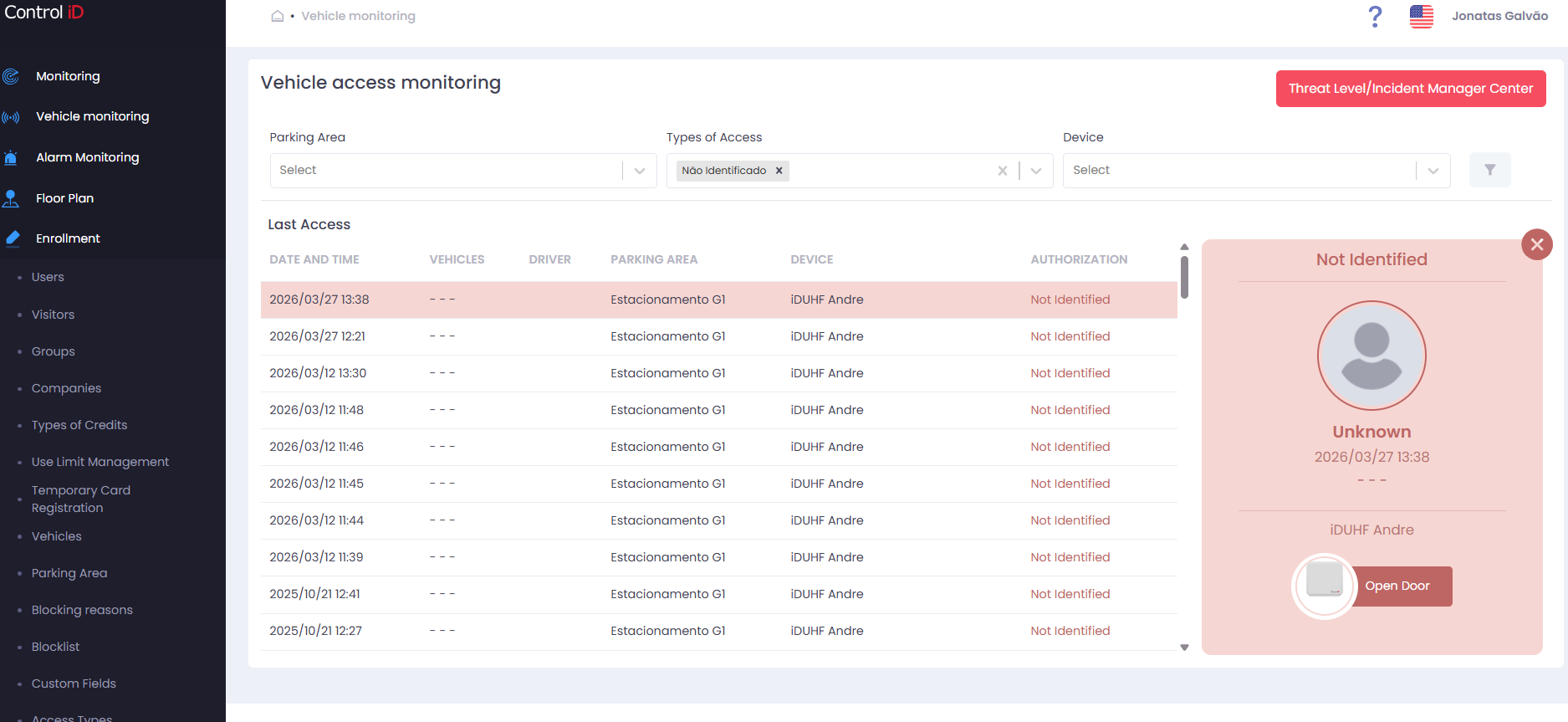
Click any row in the table to display the event details card in the side panel. The card shows:
- Date/Time of the event.
- Vehicle: Make, model, license plate, and color.
- Driver: Name and photo.
- Parking Lot and Device related to the event.
- Authorization: Event type.
- Vehicle photo (when available at the time of access).
Open Doorbutton: Remotely triggers the opening of the gate or barrier of the device (available only when the device supports remote commands).
To close the details card, click the close button in the panel corner.
Remote Gate/Barrier Trigger
To remotely trigger the opening of a gate or barrier from an event:
- Click the desired event row to open the details card.
- Click
Open Door. - The command will be sent immediately to the device.
Note: Remote triggering requires the device to be online and the operator to have permission to execute remote commands. Contact your administrator if in doubt.