Accessing the Blocking Reasons Screen
To manage the available reasons for blocking people, navigate via the side menu: Records > Blocking Reasons.
Note: This feature is only available when the Advanced Block List Management option is enabled in the system settings. If you do not see this option in the menu, contact your administrator.
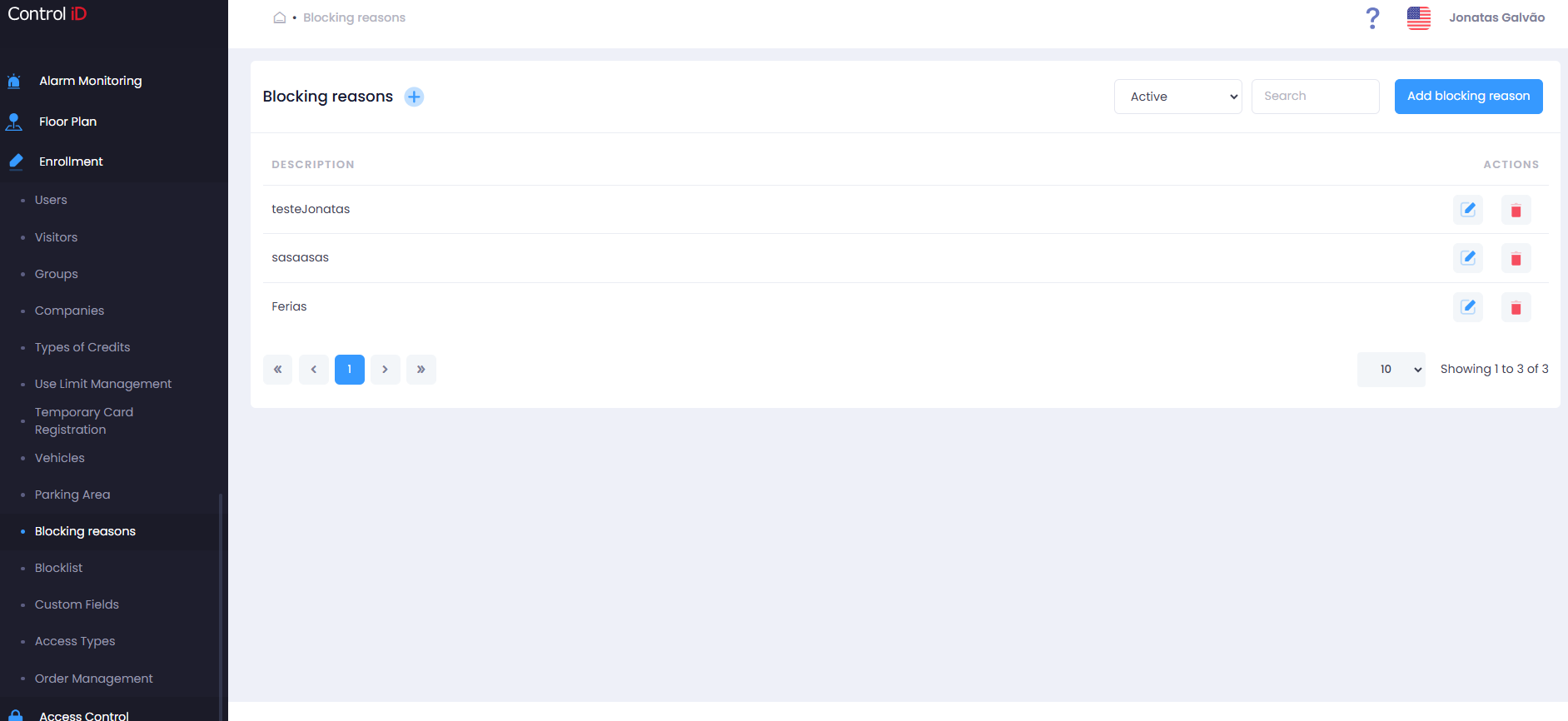
Filtering Blocking Reasons
Use the status filter at the top of the screen:
- All: Shows all reasons (active and inactive).
- Active: Lists only active reasons.
- Inactive: Shows only deactivated reasons.
Use the Search field to locate a reason by description.
Search and Display
The table displays:
- Description: Name of the blocking reason.
- Actions: Options to edit, deactivate/activate, and delete.
Adding a Blocking Reason
To register a new reason, click Add blocking reason in the screen header.
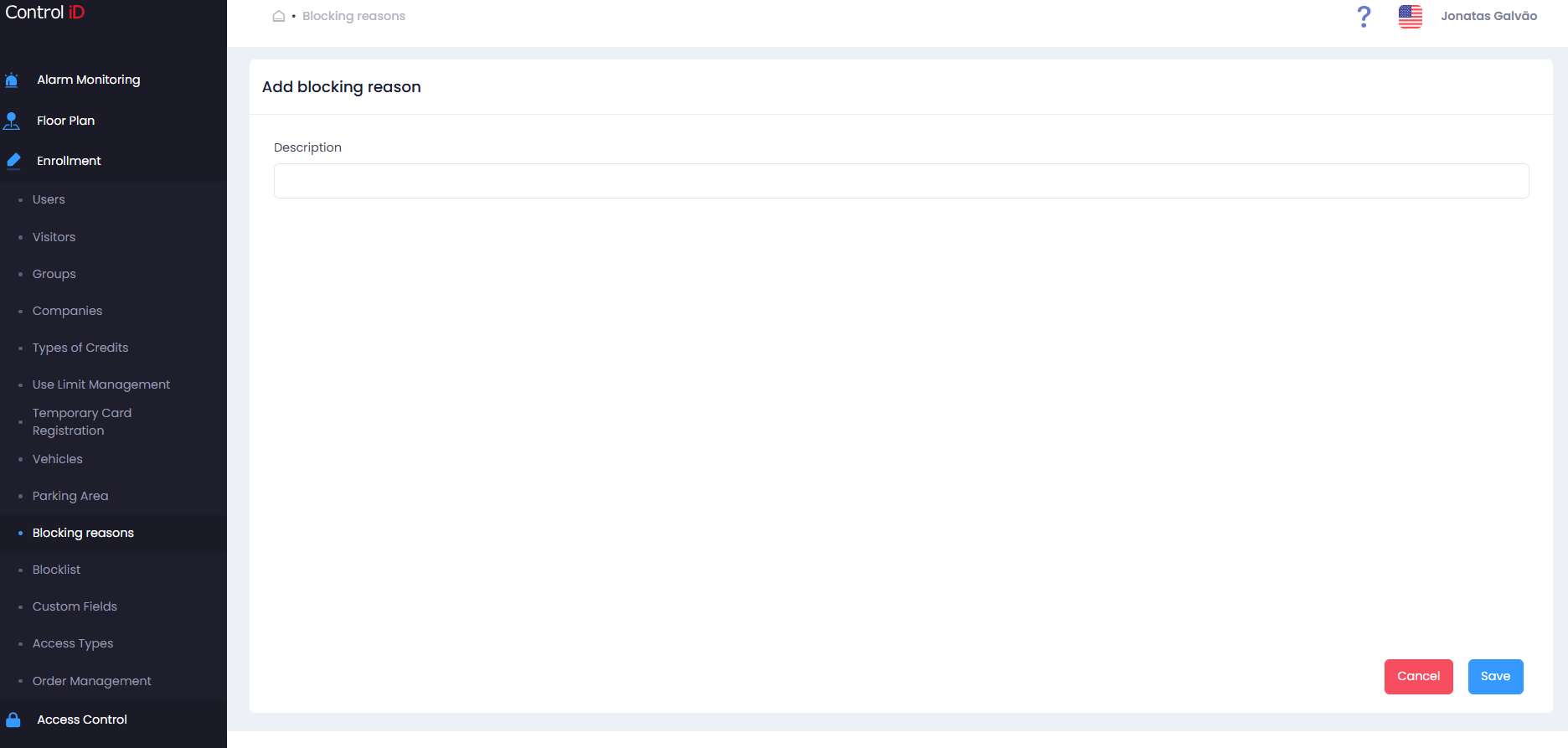
Fill in the field:
- Description: Enter the name of the blocking reason (e.g., "Termination", "Debt", "Conduct", etc.).
Click Save to confirm. The reason will be available for selection on the Block List screen.
Editing a Blocking Reason
To edit an existing reason, click the edit icon (pencil) on the corresponding row. After changing the description, click Save.
Removing a Blocking Reason
To deactivate or remove a blocking reason:
- Click the delete icon (trash) to deactivate the reason. It will no longer appear as a selection option, but existing records that use it are not affected.
- To reactivate an inactive reason, click the reactivation icon.
Note: A blocking reason that is linked to active records in the Block List cannot be permanently deleted.