Accessing the Device Groups Screen
To organize access control devices into logical groups, navigate via the side menu: Access > Device Groups.
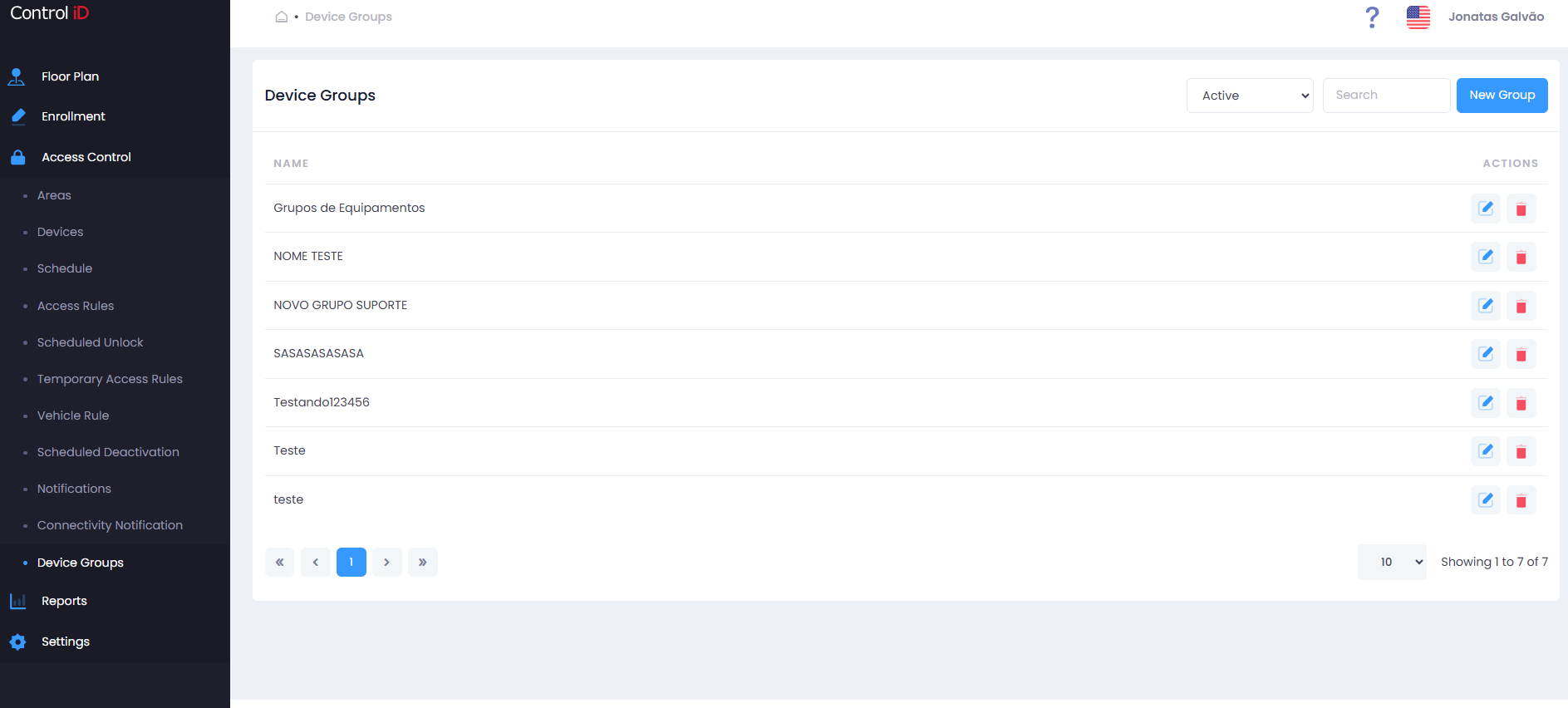
Overview
Device Groups allow you to organize devices (turnstiles, controllers, readers, etc.) into logical sets to simplify management, monitoring, and the application of access rules. A device can belong to one or more groups.
Filtering Device Groups
Use the status filter at the top of the screen:
- All: Shows all groups (active and inactive).
- Active: Lists only active groups.
- Inactive: Shows only deactivated groups.
Use the Search field to locate a group by name.
Search and Display
The table displays:
- Group Name: Group identifier.
- Actions: Options to edit, deactivate/activate, and delete.
Adding a Device Group
To create a new group, click New Group in the screen header.
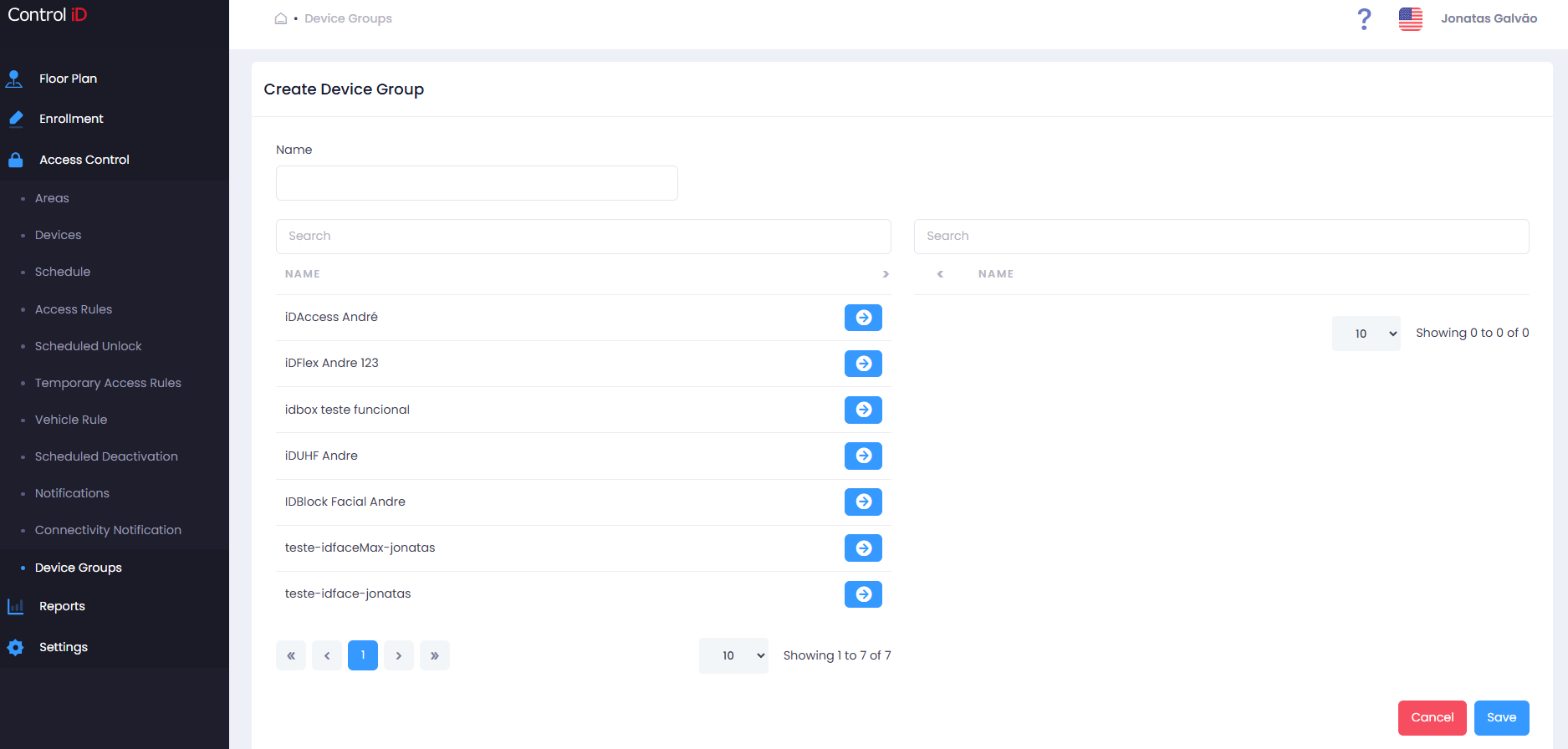
Fill in the form fields:
- Group Name: Enter a descriptive name for the group (required).
- Devices: Use the dual-list selector to link devices to the group:
- The left list shows available devices (not yet in the group).
- The right list shows devices already included in the group.
- Use the central buttons to move devices between lists:
Add to group: Moves selected items from left to right.Add all: Moves all available devices into the group.Remove from group: Removes selected items from the group list.Remove all: Removes all devices from the group.
Click Save to confirm the registration.
Editing a Device Group
To edit an existing group, click the edit icon (pencil) on the corresponding row. Use the dual-list selector to add or remove devices from the group. After making changes, click Save.
Removing a Device Group
- Click the delete icon (trash) to deactivate the group. A confirmation dialog will be displayed.
- To reactivate an inactive group, click the reactivation icon.
Note: Deactivating a Device Group does not affect the individual operation of linked devices. Devices continue to operate normally; only the logical grouping is deactivated.