Accessing the Vehicle Access Reports Screen
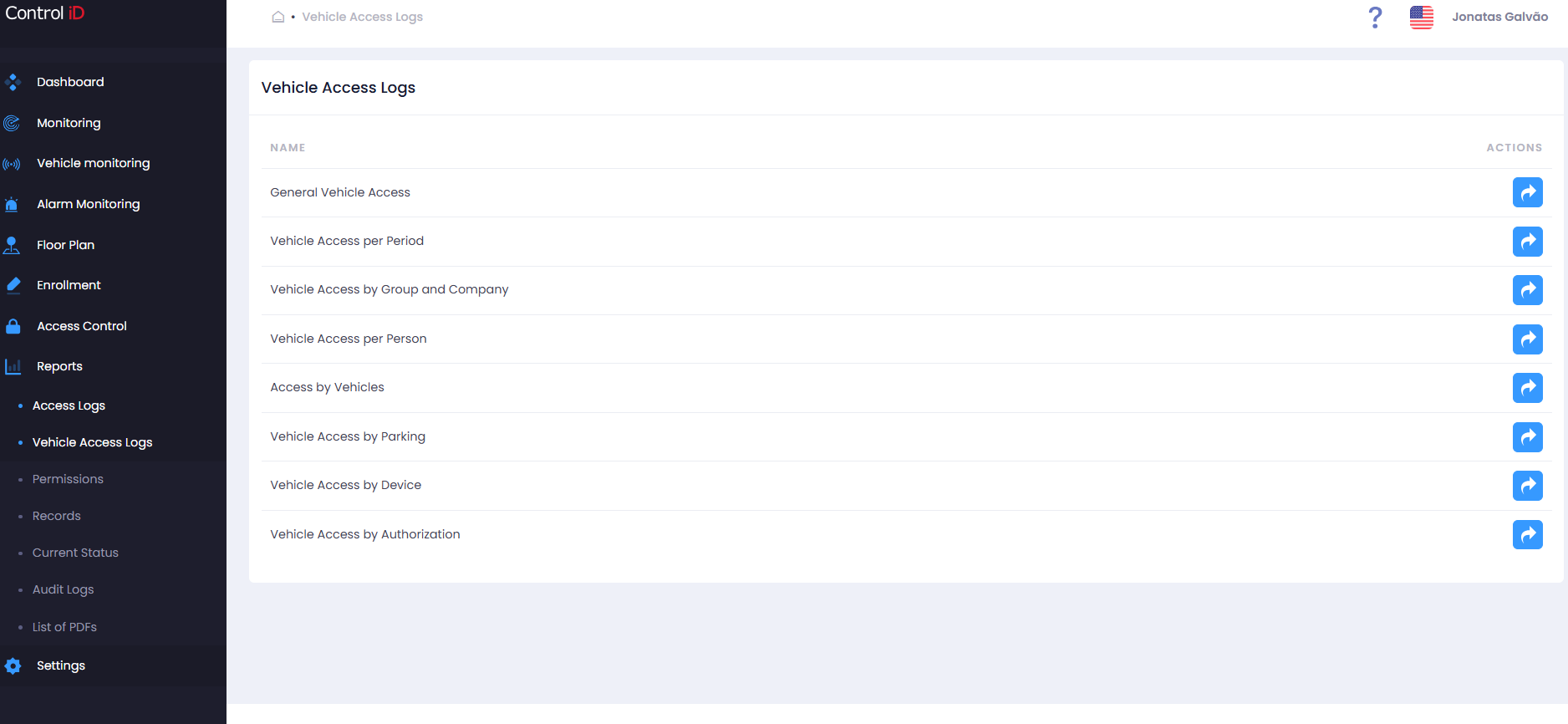
To view vehicle access event reports, navigate via the side menu: Reports > Vehicle Access.
Overview
The Vehicle Access Reports Center displays cards for each available vehicle access query type. The available sub-reports are:
- Vehicle Access — General: Lists all vehicle access events with filters by vehicle, driver, parking lot, device, and date range.
- Vehicle Access — Date and Time: Vehicle events grouped by time period.
- Vehicle Access — Group and Company: Filter vehicle events by driver groups or companies.
- Vehicle Access — People: Events associated with the driver (registered person).
- Vehicle Access — By Vehicle: Query by license plate or vehicle identification.
- Vehicle Access — Parking: Events grouped by parking lot.
- Vehicle Access — Device: Events generated by each UHF reader or vehicle control device.
- Vehicle Access — Authorization: Group vehicle events by system response type.
Filtering Vehicle Access Logs
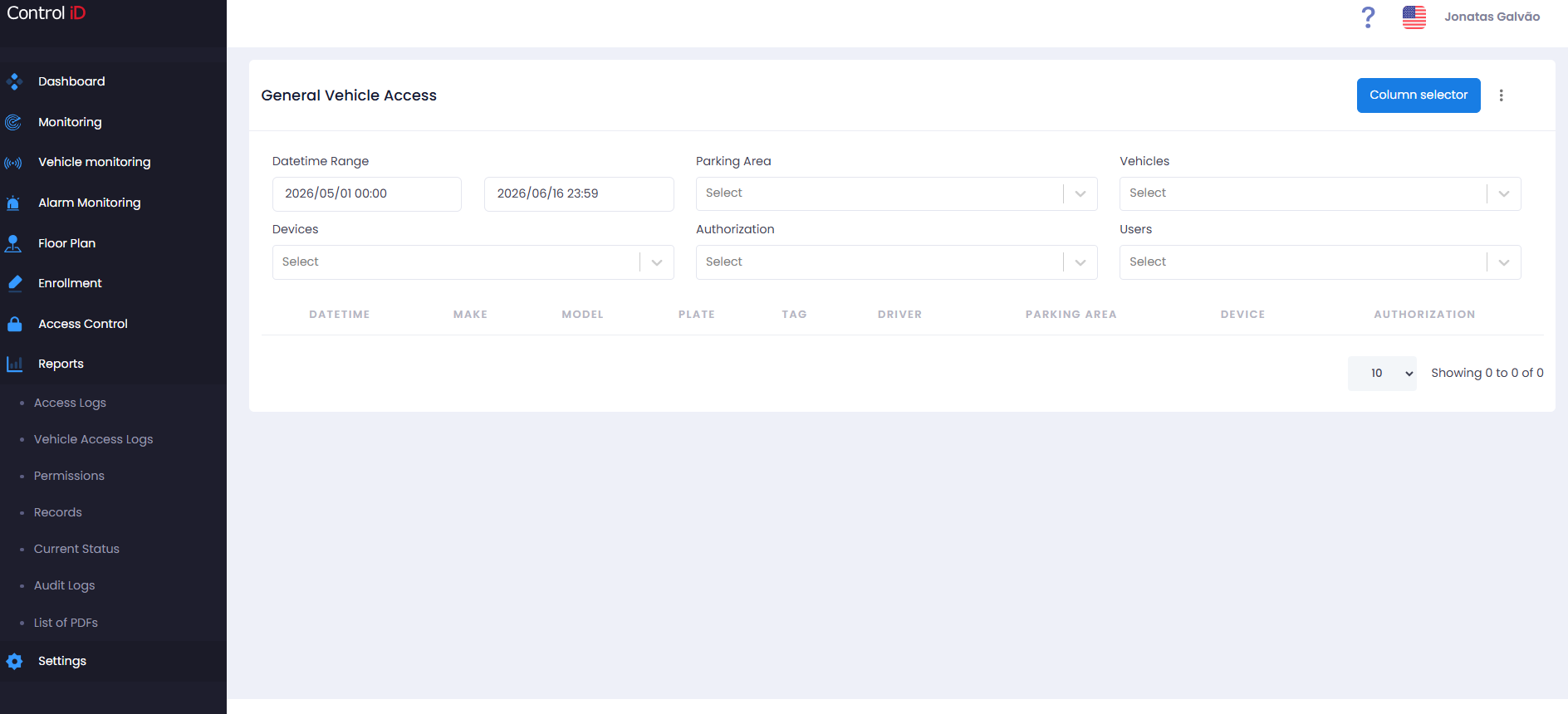
The filter panel available in vehicle sub-reports includes:
- Time Range: Select start and end date/time.
- Driver / Person: Search by the driver's name.
- Vehicles: Filter by license plate, make, or model.
- Parking Lots: Select one or more parking lots.
- Devices: Select UHF readers or other vehicle control devices.
- Authorization: Event type (Access Granted, Access Denied, etc.).
- Groups / Companies: Filter by groups or companies linked to the driver.
Search and Display
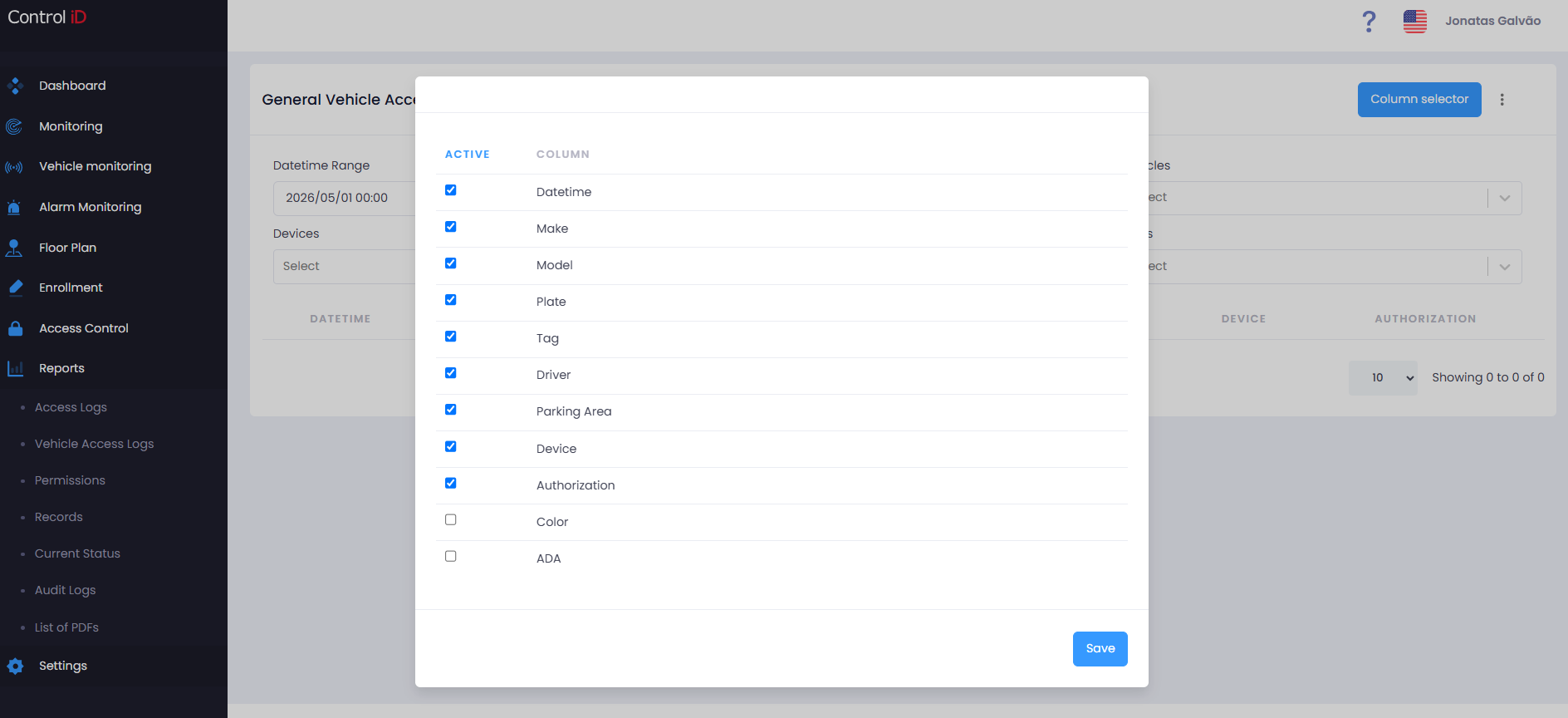
The results table displays the following default columns:
- Date/Time: Exact moment of the event.
- Vehicle: Vehicle identification (make, model, license plate, color).
- Driver: Name of the person associated with the vehicle at access time.
- Parking Lot: Parking lot related to the event.
- Device: Device that recorded the access.
- Authorization: System response type for the access.
You can customize the displayed columns using the column selector in the toolbar. Default pagination shows 10 records per page and can be adjusted to 25, 50, or 100 records.
Exporting Data
To export vehicle access report data:
- Configure the desired filters.
- Click
Export CSVin the table toolbar. - The file will be automatically downloaded by the browser.
For asynchronous PDF export, the file will be available under Reports > PDF List after generation is complete.
Note: The export includes only the records matching the current filters. Adjust the filters before exporting to ensure all desired data is included.