Accessing the PDF List Screen
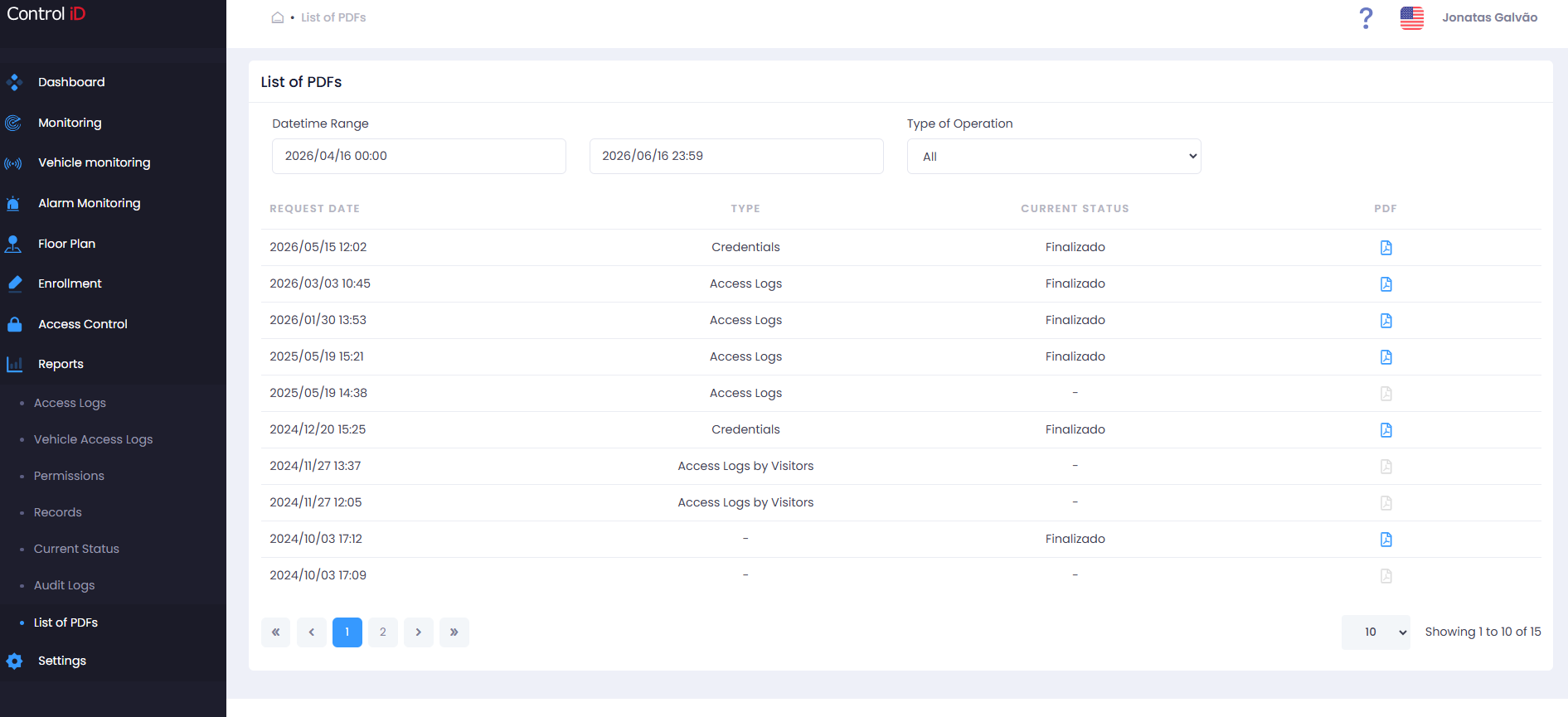
To track and download reports generated in PDF format, navigate via the side menu: Reports > PDF List.
Overview
Certain system reports generate PDF files asynchronously — that is, generation occurs in the background and the file becomes available for download on this screen once complete. The PDF List centralizes all reports requested by the operator, displaying the generation status of each.
Filtering the PDF List
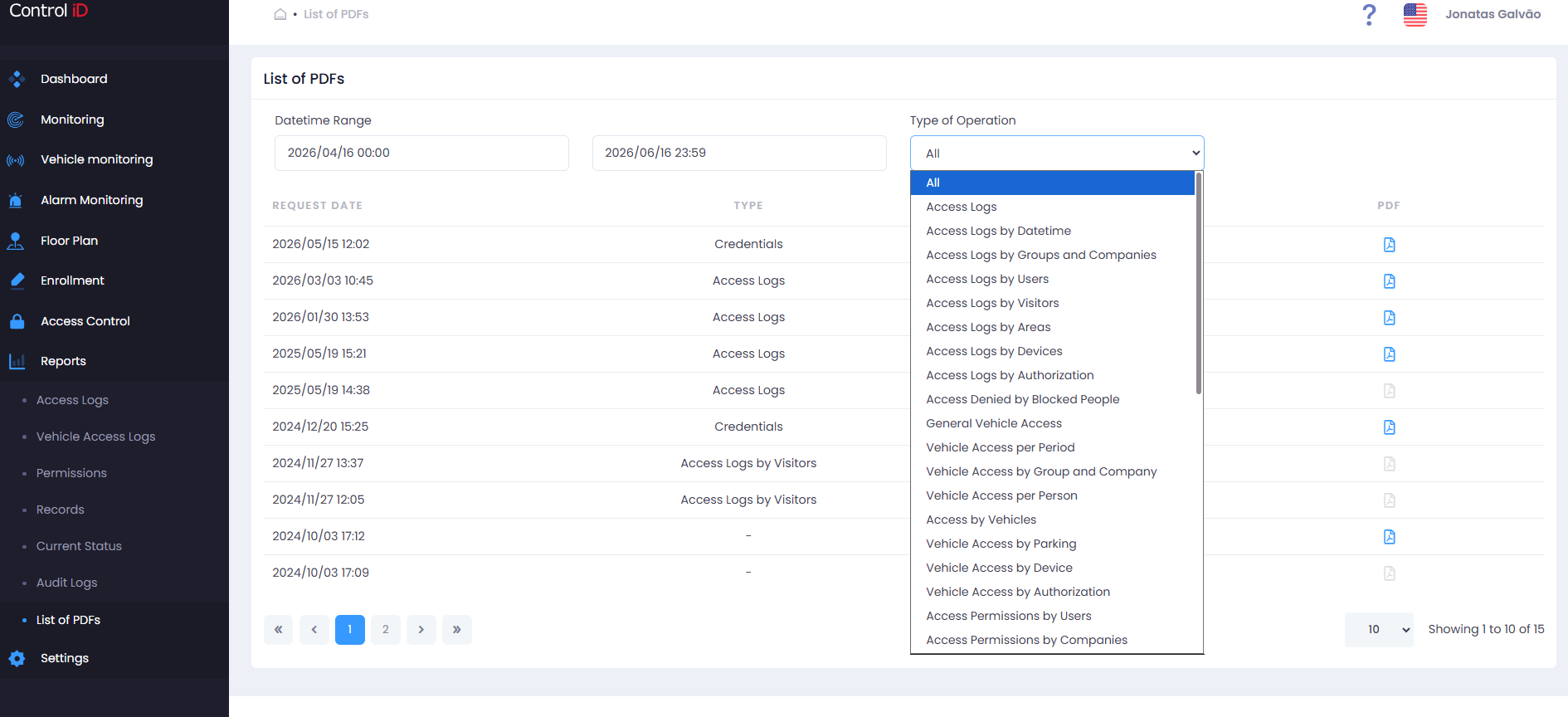
The available filter panel includes:
- Time Range: Delimits the PDF request period. Default shows the last 2 months.
- Report Type: Filter by report type (e.g., Access Report, Records Report, etc.).
Search and Display
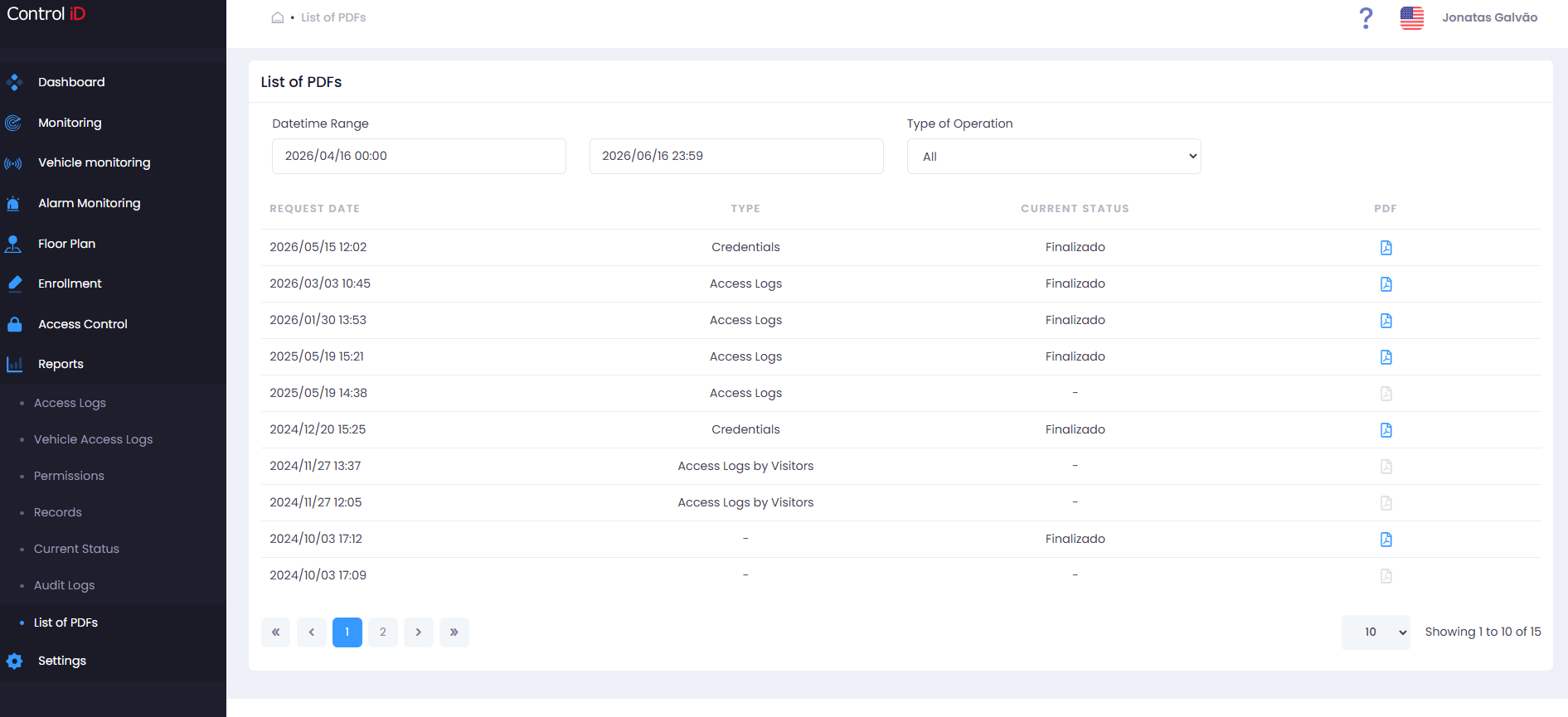
The results table displays the following columns:
- Request Date: Date and time the report was requested.
- Type: Type of generated report.
- Status: Current generation state:
- Generated: The file is ready for download.
- Generating: Generation is in progress. Wait and refresh the page.
- Error: A problem occurred during generation. Retry or contact support.
- PDF: Download link for the file, available when status is Generated. The download icon is disabled while generation is in progress or in error.
Downloading a PDF
To download an available report:
- Locate the desired report in the table.
- Verify that the status is
Generated. - Click the download icon in the PDF column.
- The file will be automatically downloaded by the browser.
Note: The PDF List shows only reports requested by the currently logged-in operator. Each operator sees only their own generated files.