Accessing the Temporary Access Rules Screen
To configure temporary or special access rules that override conventional rules, navigate via the side menu: Access > Temporary Access Rules.
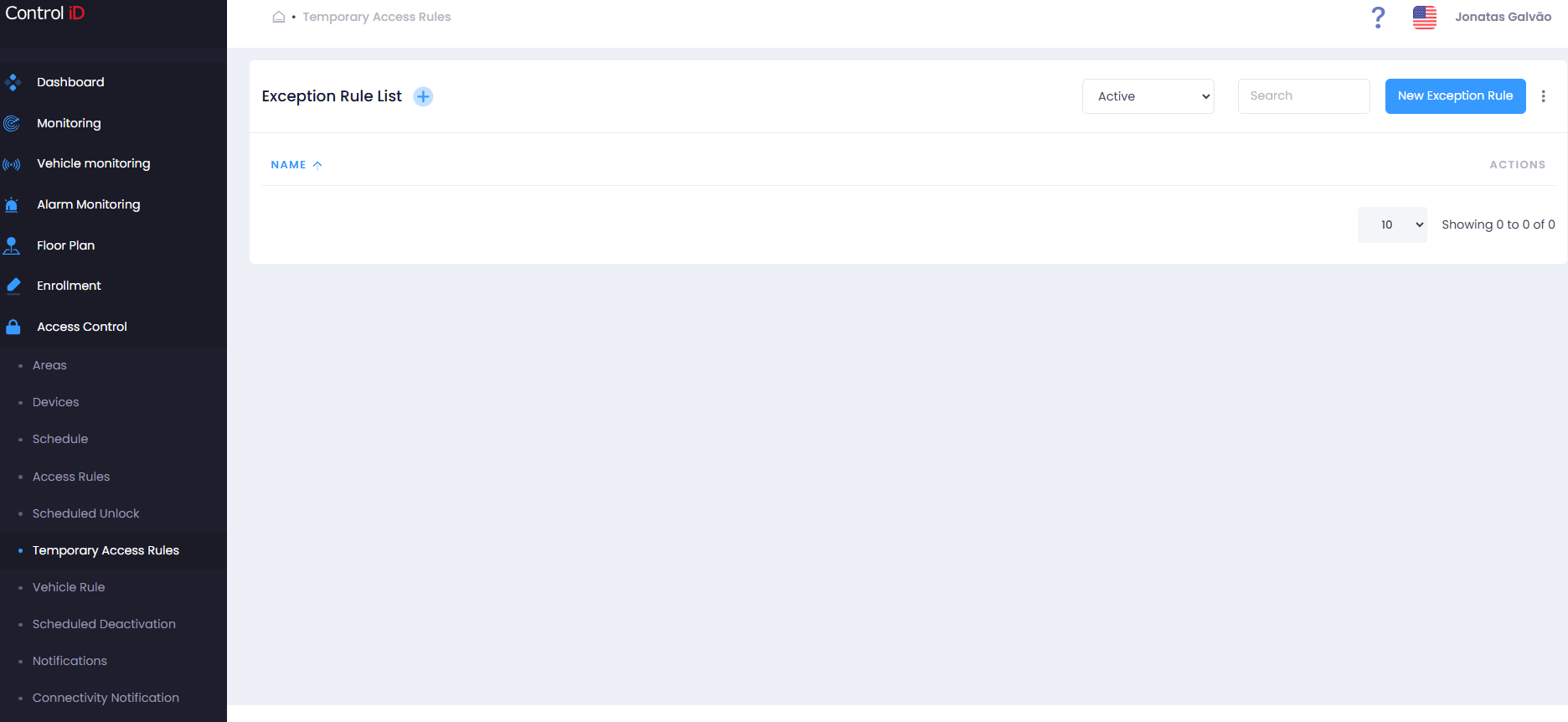
Overview
Temporary Access Rules (Exception Rules) allow defining special access permissions that exceed or replace conventional access rules. They are used for scenarios such as temporary access for a person to a restricted area, a one-time release outside standard hours, or fine-grained access configuration for specific situations.
Filtering Temporary Access Rules
Use the status filter at the top of the screen:
- All: Shows all rules (active and inactive).
- Active: Lists only active rules.
- Inactive: Shows only deactivated rules.
Use the Search field to locate a rule by name.
Search and Display
The table displays:
- Name: Rule identifier.
- Status: Active or Inactive.
- Actions: Options to edit, deactivate/activate, and delete.
Adding a Temporary Access Rule
To create a new rule, click Add Rule in the screen header. Registration is performed through a wizard with 5 steps by default:
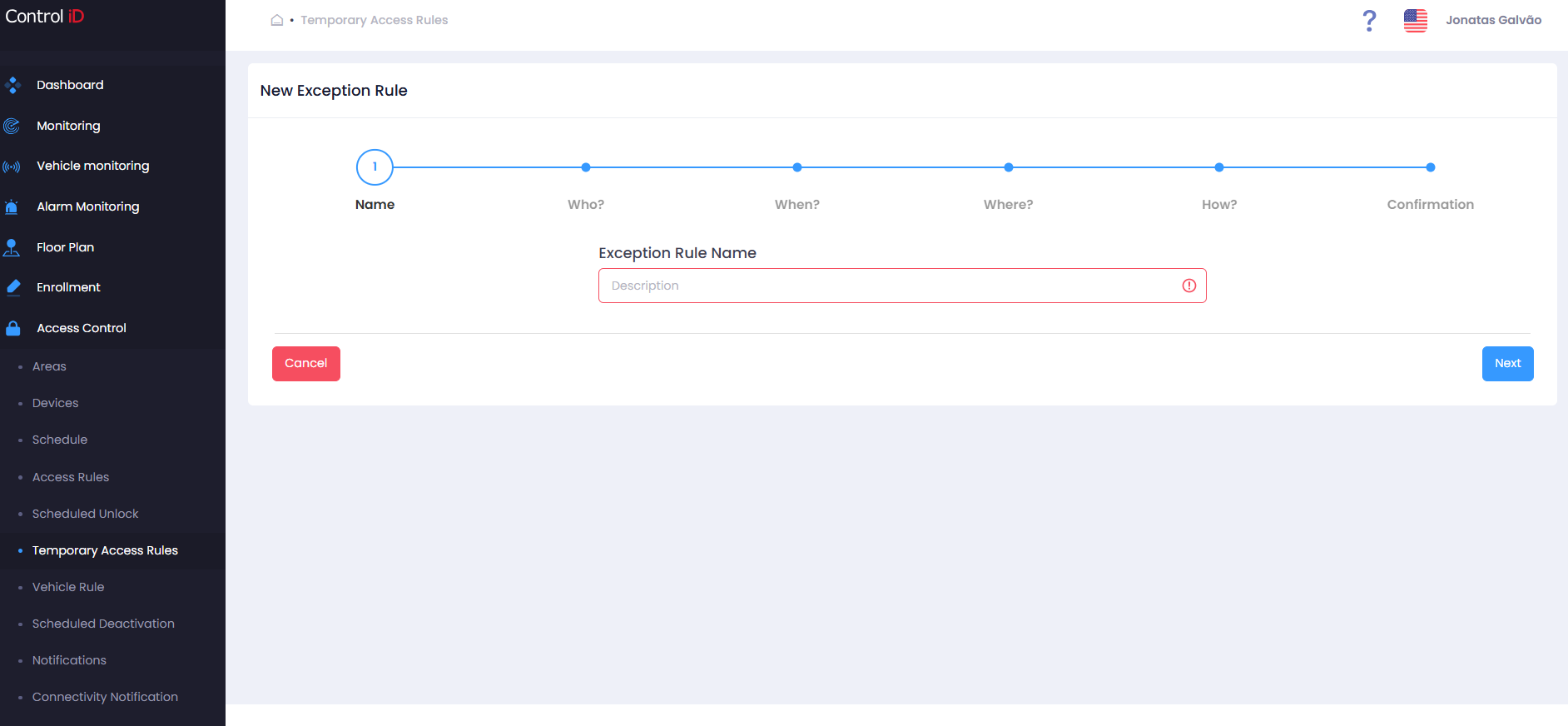
Step 1 — Rule Description
- Name: Enter a descriptive name for the rule (required).
- Description: Optional field to detail the purpose of the rule.
Click Next to continue.
Step 2 — Who
Select who will have access governed by this exception:
- People: Select specific people.
- Visitors: Select registered visitors.
- Groups: Select people groups.
- Types: Select person or visitor types.
Click Next to continue.
Step 3 — When
Define the validity period of the exception rule:
- Start date: Date from which the rule takes effect.
- End date: Date until which the rule is valid.
Click Next to continue.
Step 4 — Where
Select the areas where the exception rule will apply:
- Areas: Select one or more physical areas.
Click Next to continue.
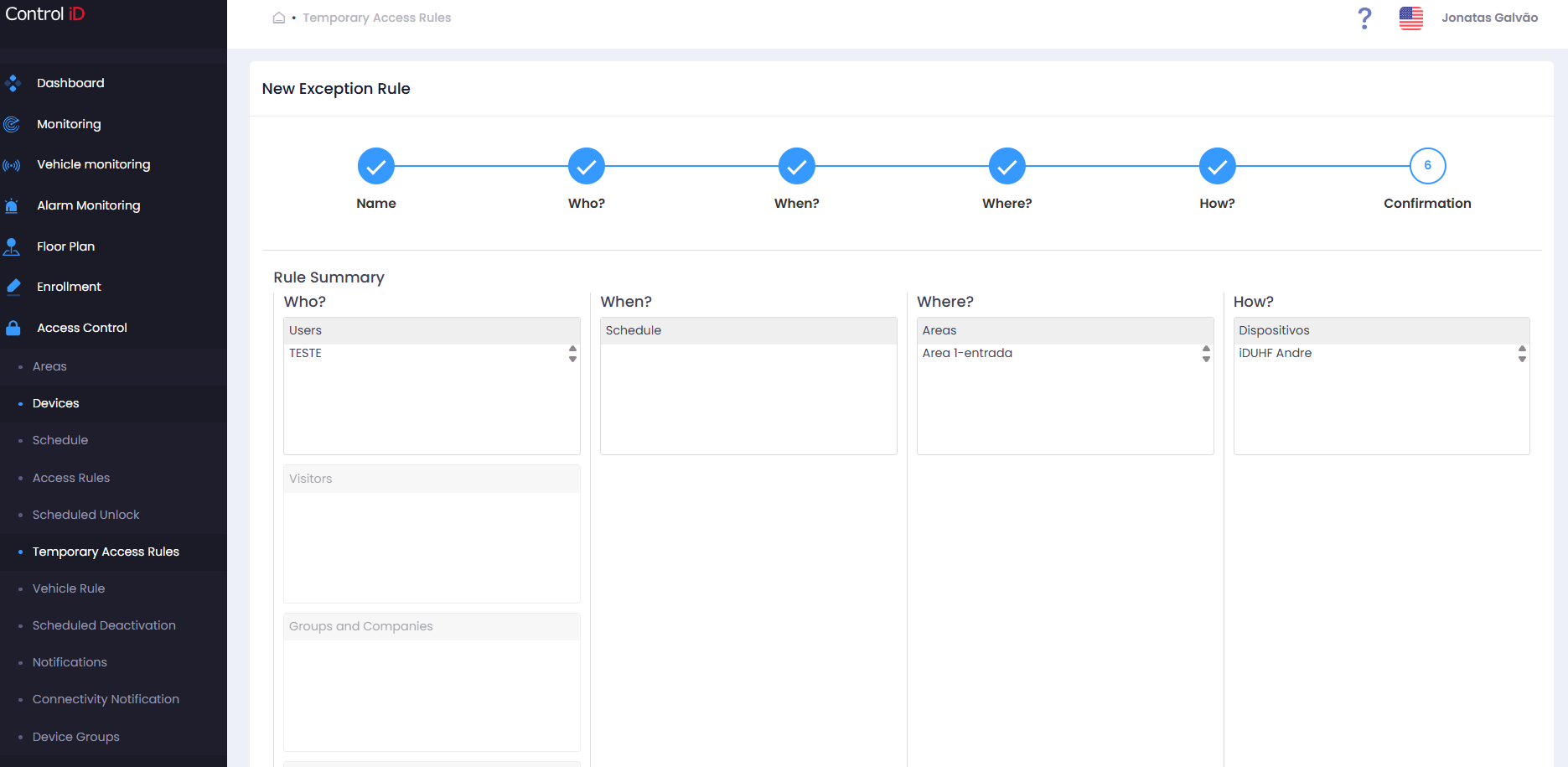
Step 5 — Confirmation
Review the settings summary. Click Save to confirm.
Editing a Temporary Access Rule
To edit an existing rule, click the edit icon (pencil) on the corresponding row. The wizard will open with the current settings. After making changes, click Save.
Removing a Temporary Access Rule
- Click the delete icon (trash) to deactivate the rule.
- To reactivate, click the reactivation icon.
Note: Deactivating a Temporary Access Rule will immediately remove the special permissions it granted from synchronized devices.